Sample report templates and tutorials
Applies to AyaNova 7 (latest release, 7.6.1). Using AyaNova 8? See the AyaNova 8 manual.
These sample report templates and how-tos were first published on the AyaNova support forum. Many were written for earlier versions of AyaNova, so menus and screens may differ slightly in AyaNova 7.
Report templates download as .zip files: extract the file, then import it into AyaNova as described in Importing a report template. For the report templates that come with AyaNova, see AyaNova 7 reporting.
Report templates to download
- Adding BarCode for what displays as Serial Number into a report
- Another example of combined script and making invisible if object not selected
- Average Response Time - uses TimeSpan and Date related scripts
- Banked Service Using Grids Hour Balance
- Bill Head Office determines which postal address displayed on Detailed Completed Workorder report template
- Copy of the original Sample Detailed Quote report template
- Displaying the TimeSpan in a report via script
- Example AyaNova 7 Quotes report template showing Tasks
- Example Estimated vs Actual report template
- Example report showing grand total on single line - useful for exporting too
- Example simple report for exporting
- How to print two print jobs of a report at the click of the Print Direct menu option
- How to save report file to use workorder number instead of xtraReport1
- How to use True / False fields in report templates - checkboxes, custom text
- Labor Action Report Summary (LARS) by Type - provided by AyaNova user
- Making each workorder item start on a new page
- Manual muliplication of quantity by part price via scripts
- NEW Banked Service Showing Hours Balance Based Grid Sorted by Effective Date Using Scripts
- No charge hours calculation
- Prefixing text to workorder number
- Report templates geared towards unit history - accessed from Items grid with grid filtered to show records for one Unit only
- Reporting: Example of using API Methods to bring in Unit's Warranty information
- Reporting: Example of using API Methods to display PO vendor and client data
- Sample Client Billing Hours report template from the Labor grid
- Sample Detailed Workorder report template where totals derived from scripts
- Sample Dispatching Report
- Sample Labor Cost for Displayed Workorders report template
- Sample Meter Reading Report that displays Difference
- Sample Part Profit / Loss report template
- Sample report template displaying individual tax totals at bottom of report
- Sample Report Templates from AyaNova 5.x
- Sample Report Templates of AyaNova 7
- Sample Total Workorder Billable Grouped By Client
- Sample User Billing & NC with Commission report template
- Tutorial for Creating Detailed Report Template with AyaNova 7
- Tutorial on creating a new AyaNova 4 detailed report template from scratch
- Tutorial on creating PO Receipt Items label for quantity of parts received
- Use the Count Summary function in a report template
Tutorials and tips
- AyaNova new email feature for detailed workorder reports
- Example of report with "header" showing letter of the alphabet (like an index)
- Examples of using API Methods to bring in data into reports
- Format Quantity to remove trailing zeros on a Simple Number field
- Format Quantity to remove trailing zeros on a Sum field
- How to have report print only objects that have data in a certain field (not empty)
- How to set up Multi-columns in a report that is not a label
- List of parts used in workorders with no duplicates
- Parse Error, no assembly associated with Xml key error possible solutions
Adding BarCode for what displays as Serial Number into a report
First posted 2007 · Back to list
Here is an example that was requested by an AyaNova user:
Want to have a BarCode display the serial number of the unit being serviced in the dispatch report template
As an example, I've included a sample report template so that you can see the end result of the steps below. Download, extract and import to follow along:
Sample Dispatching Report with Unit Serial Number BarCode
Do note that for barcodes to work for serial numbers, you may have to set the Global Settings to show only serial number - don't forget to save, log out and log back in to set this before proceeding.

Steps I took to include a barcode to display what is set for the datafield Serial Number in the sample dispatching report template
1. I opened up the Sample Dispatching Report template, selected Save As and saved as this report template
2. I extended the height of the DetailReportItem's Detail2 band by dragging it down to make room
3. Selected the Toolbox tab and dragged the BarCode field onto the Detail2 band

4. Selected the Code93Extended Symbology property - what barcode you select will depend on what your unit's serial numbers are made up of. For example, because my trial data's serial numbers are made up of letters and numbers, I selected the Code93Extended

5. Now the datafield for this BarCode needs to be set by setting the binding property for the BarCode field


6. In the report designer, the barcode now looks as below

6. And in the report template, the barcode looks like this for a serial number.

Another example of combined script and making invisible if object not selected
First posted 2009 · Back to list
Here is another example of a combined script. This example also includes the script how to set the label to not be visible if no unit selected.
Attached zipped report template is a further customization of the Sample Detailed Quote.
The example is based on that you want the label "Item submitted for repair:" to only show if a unit is actually selected in the quote.
To see the script used to do this, click on the label1 field and view its Before Print script from the Properties tab
private void OnBeforePrint(object sender, System.Drawing.Printing.PrintEventArgs e)
{

//this combined script displays the label and the unit
label1.Text = string.Format("{0} {1}", "Item Submitted For Repair: ", DetailReportItem.GetCurrentColumnValue("LT_Unit_Label_Serial"));

//this states that if there is no Unit (unit is empty (whichis "")), to set the field label1 to not be visible
label1.Visible=(""!=(DetailReportItem.GetCurrentColumnValue("LT_Unit_Label_Serial").ToString()));

}
*Note the name of the field is exactly that of the field in your report
*In this combined script, we will be showing two, so there is only two listed ("{0} {1}",
*Note that the name of the band matches that in the script
https://www.ayanova.com/Downloads/ReportTemplates/SampleDetailedQuotewithexamplecombinedscript.zip
Average Response Time - uses TimeSpan and Date related scripts
First posted 2007 · Back to list
The following sample report template once imported, would be available from the Service Workorders grid and the Items grid . Before selecting to print the report template, you would filter the grid to display the records you wish to report on - such as workorders that have a specific Workorder Status for a specific client for a specific date range.
Download the report template Average Response Time - Service Workorders grid.zip, extract and import
A sample view of the report template:
Details about the report template:
Open the report template via the Report Designer and refer to the following areas that are unique about this report template so that you can customize further, and/or refer to this report template when creating your own.
The reportHeaderBand1 has the following OnBeforePrint script to set the variables used to determine the average: dir=ltr >
private void OnBeforePrint(object sender, System.Drawing.Printing.PrintEventArgs e) {
}
//set variables for determining average
TimeSpan TotalResponseTime;
int CountOfLaborItems = 0;
The DetailBand of the WorkorderItem area has the property Visible set to False, so that the Request Date field does not show, but we need this field here because we are using it in a script in the Labor's band.
The Detail1 band of the Labor area has the following OnBeforePrint script so that the field xrTableCell12will display the response time for each record, as well as maintain a running total of seconds to be used when determining the average at the end of the report: dir=ltr >
private void OnBeforePrint(object sender, System.Drawing.Printing.PrintEventArgs e)
{

//this gets the object value of the Start Date & Time
DateTime dt1 = Convert.ToDateTime(DetailReport1.GetCurrentColumnValue("LT_WorkorderItemLabor_Label_ServiceStartDate"));
//this gets the object value of the Requested Date & Time
DateTime dt2 = Convert.ToDateTime(DetailReport.GetCurrentColumnValue("LT_WorkorderItem_Label_RequestDate"));

//the following two lines determine if the start date or request date is missing a valid date
TimeSpan ts = TimeSpan.Zero;
xrTableCell12.Text = "Missing a valid date";

//if request date and label date are valid, than the following below it occurs
if (!(dt1.Year == 1 || dt2.Year == 1))
 {
//this subtracts the Requested date & time from the Start date & time
ts = dt1.Subtract(dt2);
//this displays the timespan in total days(if you want to display in hours than change TotalDays to TotalHours
xrTableCell12.Text = ts.Days.ToString()+" Days " +
ts.Hours.ToString()+" Hours " +
ts.Minutes.ToString()+" Minutes " +
ts.Seconds.ToString()+" Seconds";
// this maintains a running total of Actual Difference for each record
//into the TotalResponseTime we will use at the end of the report to get the average
TotalResponseTime += ts;
//Add 1 to the count of labor so that we divide by the correct amount
CountOfLaborItems ++;

 }

}
The ReportFooter band has the OnBeforePrint script to display the average response time: dir=ltr >
private void OnBeforePrint(object sender, System.Drawing.Printing.PrintEventArgs e)
{
//the following divides the total seconds by the count so we can get the average
double TotalSeconds = TotalResponseTime.TotalSeconds;
TimeSpan AverageResponseTime = TimeSpan.FromSeconds(TotalSeconds/CountOfLaborItems);

//the following displays the average of the total counted response times
xrLabel5.Text = AverageRes
The following is similar to above, except that it is available from the Labor grid in the Service navigation pane , and has slightly different script to account for the differences between a "detailed" report template like above, and a "summary" report template as this is. Also, due to the differences, if a labor record is missing a Request Date, you will get an error message - so make sure yo udo have Request Date's entered if using from the Labor grid
Download the Sample Average Response Time - Labor grid.zip, extract it using WinZip, and import.
Details about the report template:
Open the report template via the Report Designer and refer to the following areas that are unique about this report template so that you can customize further, and/or refer to this report template when creating your own.
The reportHeaderBand1 has the following OnBeforePrint script to set the variables used to determine the average (same as the detailed report template above): dir=ltr >
private void OnBeforePrint(object sender, System.Drawing.Printing.PrintEventArgs e) {
}
//set variables for determining average
TimeSpan TotalResponseTime;
int CountOfLaborItems = 0;
The detailBand1 band has the following OnBeforePrint script so that the field xrTableCell10will display the response time for each record, as well as maintain a running total of seconds to be used when determining the average at the end of the report (note differences between this script in a summary report template vs that of the detailed report template above): dir=ltr >
private void OnBeforePrint(object sender, System.Drawing.Printing.PrintEventArgs e)
{

//the following two lines are if start date or request date is missing a valid date
TimeSpan ts = TimeSpan.Zero;
xrTableCell10.Text = "Missing a valid date";

if (!(GetCurrentColumnValue("LT_WorkorderItem_Label_RequestDate") == "" || GetCurrentColumnValue("LT_WorkorderItemLabor_Label_ServiceStartDate") ==""))
 {
//this gets the object value of the Start Date & Time
DateTime dt1 = Convert.ToDateTime(GetCurrentColumnValue("LT_WorkorderItemLabor_Label_ServiceStartDate"));
//this gets the object value of the Requested Date & Time
DateTime dt2 = Convert.ToDateTime(GetCurrentColumnValue("LT_WorkorderItem_Label_RequestDate"));

//if request date and label date are valid, than the following below it occurs
if (!(dt1.Year == 1 || dt2.Year == 1))
 {
//this subtracts the Requested date & time from the Start date & time
ts = dt1.Subtract(dt2);
//this displays the timespan in total days(if you want to display in hours than change TotalDays to TotalHours
xrTableCell10.Text = ts.Days.ToString()+" Days " +
ts.Hours.ToString()+" Hours " +
ts.Minutes.ToString()+" Minutes " +
ts.Seconds.ToString()+" Seconds";
// this maintains a running total of Actual Difference for each record
//into the TotalResponseTime we will use at the end of the report to get the average
TotalResponseTime += ts;
//Add 1 to the count of labor so that we divide by the correct amount
CountOfLaborItems ++;

 }
 }

}
The ReportFooter band has the OnBeforePrint script to display the average response time (same as that of the detailed report template above): dir=ltr >
private void OnBeforePrint(object sender, System.Drawing.Printing.PrintEventArgs e)
{
//the following divides the total seconds by the count so we can get the average
double TotalSeconds = TotalResponseTime.TotalSeconds;
TimeSpan AverageResponseTime = TimeSpan.FromSeconds(TotalSeconds/CountOfLaborItems);

//the follo
AyaNova new email feature for detailed workorder reports
First posted 2008 · Back to list
With AyaNova 4 and higher versions, check out the report template feature that can automatically "suck" out the client's email address if attaching a detailed workroder report to an email, without having to copy it from the client entry screen.
If you have a new installation of AyaNova 4, you will see this in the Sample Detailed Service Workorder with Grand Total report template, or if you have upgraded to AyaNova 4, you can edit your detailed workorder report templates to take advantage of this feature.
To see how this was edited:
1. Open a detailed report template from a workorder in the report designer. For example, open a workorder, select Print, hold down the SHIFT key from your keyboard and select Sample Detailed Service Workorder with Grand Total whic hopens this report template in the report designer)
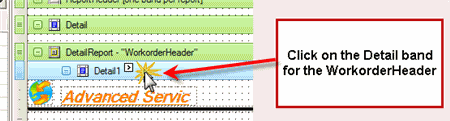
2. Click on the Detail band for the WorkorderHeader
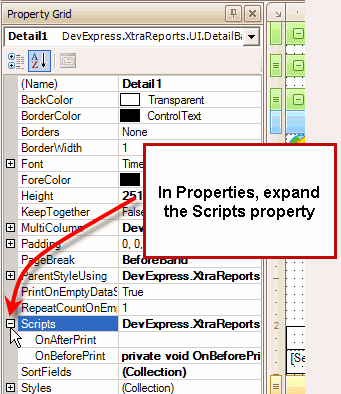
3. Expand the Scripts property for this band
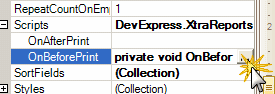
4. Open up the OnBeforePrint script (in this screenshot it already has the script entered - this is to show you where the script needs to be placed)
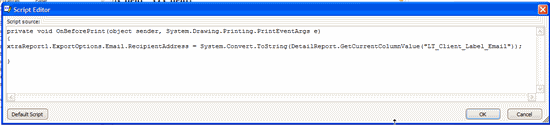
5. The script as shown is
private void OnBeforePrint(object sender, System.Drawing.Printing.PrintEventArgs e)
{
xtraReport1.ExportOptions.Email.RecipientAddress = System.Convert.ToString(DetailReport.GetCurrentColumnValue("LT_Client_Label_Email"));

}
6. Save the report template.
7. Now from the workorder entry screen, select Print this detailed report template. When the Print Preview opens, select on the Email menu option. IN our screenshots below, we selected the attachment to be a PDF
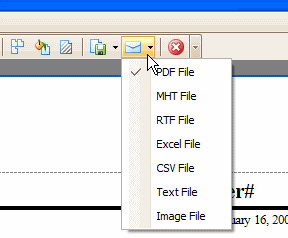
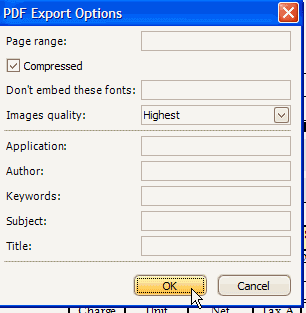
8. Save the attachment as a file to your hard drive. You can name the attachment anything you want.
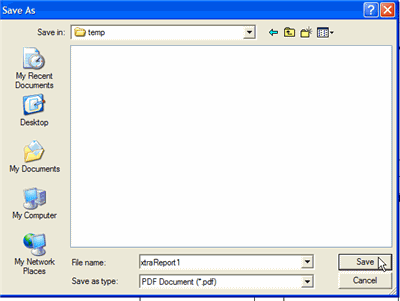
9. Your default email program will open up, automatically entering the client's email address into the TO: field, automatically attaching the report template, and the Subject: will automatically have your computer login name. You can edit as needed now, as well as include your message to your client.
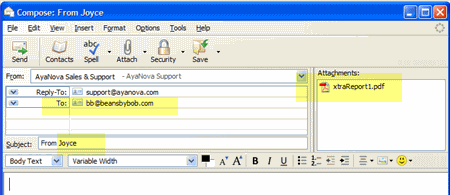
Do note that this feature is available when Print Previewing for a single workorder from that workorder's entry screen.
NOTE: There has been a change in the latest version DevExpress printing control for this feature that is used with AyaNova 5.x
To automatically have the email address of the client placed into the TO: of the email message when sending a report as an attachment, the OnBeforePrint script in an AyaNova 5 report template needs to be placed in the OnBeforePrint of the ReportHeader band NOT the Detail1 band.
For example:
1. Open a service workorder for a client that has an email address entered in their client entry screen (such as ABC Accounting if using the sample data)
2. Open the sample report template Sample Detailed Service Workorder with Grand Total in the report designer (hold the SHIFT key on your keyboard while selecting Print -> Sample Detailed Service Workorder with Grand Total )
3. Click on the Detail1 band to select it, and view the OnBeforePrint property for this band
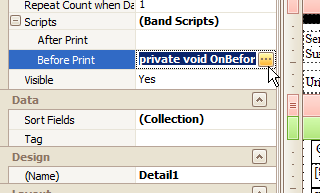
4. As this is no longer used with the printing control with AyaNova 5, you can set this back to its default script
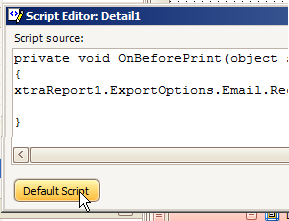
5. Now click on the ReportHeader band to select it
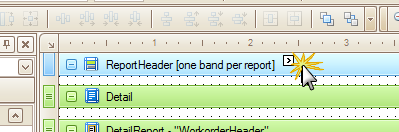
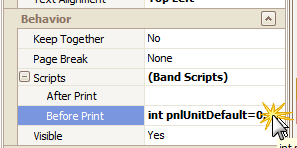
6. View the OnBeforePrint script property for this band, and add to it the line below so that it is between the two { } as per the screenshot below
xtraReport1.ExportOptions.Email.RecipientAddress = System.Convert.ToString(DetailReport.GetCurrentColumnValue("LT_Client_Label_Email"));
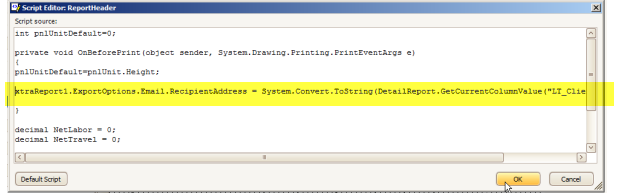
7. Test by Print Preview, select Send via Email... select PDF, and this client's email address will now show in the TO: field in the email message you send along with the report as an attachment.
ADDITIONAL: With AyaNova 5, you can instead have the following script in the OnBeforePrint band of the detail band for the WorkorderHeader that has the following
private void OnBeforePrint(object sender, System.Drawing.Printing.PrintEventArgs e)
{
DetailBand detail = (DetailBand)sender;
XtraReport report = (XtraReport)detail.Report.Report; // <---- UPDATE THIS LINE depending on what band the script is in
report.PrintingSystem.ExportOptions.Email.RecipientAddress = System.Convert.ToString(DetailReport.GetCurrentColumnValue("LT_Client_Label_Email"));
report.PrintingSystem.ExportOptions.Email.Subject = "Report for Workorder #" + (System.Convert.ToString(DetailReport.GetCurrentColumnValue("LT_O_Workorder")));
}
The above script will place the client's email address into the TO: field in the email message, as well as place the text "Report for Workorder #" and the actual workorder number of the report.
Wanted to post here for those that use this handy little reporting/emailing feature:
Email will not be sent correctly if the client's Email field has multiple addresses.
This is not yet an ability with the reporting engine to be able to send to multiple addresses. It is on this third party's component to add as a possible feature, but not yet available.
Update to the latest AyaNova 7.2 which includes resolution for this.
Just make sure to use either a comma OR a semi-colon as the dividing between multiple email addresses
Banked Service Using Grids Hour Balance
First posted 2006 · Back to list
The following is compatible with AyaNova 3.3.3 or higher only .
The sample report template Banked Service Using Grids Hour Balance displays based on the Entered Date and the Hours Balance as determined on the Banked Service grid (determined by the date entered, not effective date)
Note - you must sort the grid by the Entered Date before printing the report template to have the items listed in order by Entered date.
Banked Service Using Grids Hour Balance dir=ltr >


.
.
.
Edited the above - have removed the second report template information as it was incorrectly showing grouping determined by the report template - whereas it requires that the sort order be set via the grid before running the report template
Bill Head Office determines which postal address displayed on Detailed Completed Workorder report template
First posted 2006 · Back to list
Do note the following is compatible with 3.3.3 version of AyaNova or higher 3 versions
Download the Head Office Sample Detailed Service Workorder with Grand Total report template
This report template includes scripts that will check if the client entry screen has Bill Head Office checkmarked - if it does, than it displays the Head Office name and postal address for mailing. Otherwise it displays the clients name and postal address for mailing.


Copy of the original Sample Detailed Quote report template
First posted 2007 · Back to list
Copy of the original Sample Detailed Quote report template if required:
Displaying the TimeSpan in a report via script
First posted 2007 · Back to list
The following is a further customization of the Labor grid's Sample Schedulable Users Billing Hours with Grand Totals report to include displaying the difference in hours between the Service Stop Date & Time and Service Start Date & Time - such a field may be useful in checking that the actual hours worked are entered in the Billable Hours and No Charge Hours.
Download the report template Sample Total Actual Hours Schedulable Users Billing Hours with Grand Totalsreport
I would suggest filtering the Labor grid by the specific user (User field) and the date you wish to report on (Service Start Date & Time using a custom filter selecting greater than a date, and less than a date)
Example of a print preview of this report template

The field xrLabel21 script property OnBeforePrint uses the following script
private void OnBeforePrint(object sender, System.Drawing.Printing.PrintEventArgs e)
{
//this gets the object value of the Stop Date & Time
DateTime dt1 = Convert.ToDateTime(GetCurrentColumnValue("LT_WorkorderItemLabor_Label_ServiceStopDate"));
//this gets the object value of the Start Date & Time
DateTime dt2 = Convert.ToDateTime(GetCurrentColumnValue("LT_WorkorderItemLabor_Label_ServiceStartDate"));
//this subtracts the start date & time from the stop date & time
TimeSpan ts = dt1.Subtract(dt2);
//this displays the timespan in total hours (if you want to display in minutes, than change TotalHours to TotalMinutes
xrLabel21.Text = ts.TotalHours.ToString();
}
Example AyaNova 7 Quotes report template showing Tasks
First posted 2012 · Back to list
Further customization of Sample Detailed Quote, with Tasks status and name showing, with an empty checkbox
Compatible with AyaNova 7
Example Estimated vs Actual report template
First posted 2008 · Back to list
This is another example report template for the Service Workorder grid in the Service navigation pane
Download the following file, extract using WinZip and import into your AyaNova via Report Templates grid in the Administration navigation pane
SampleEstimatedvsActualLaborandPartsGroupedByProject.zip
This report template could be used as is, or customized further , or used to refer towhen creating or customizing your own report template. For example, you may not want to group by Project, so remove that grouping.
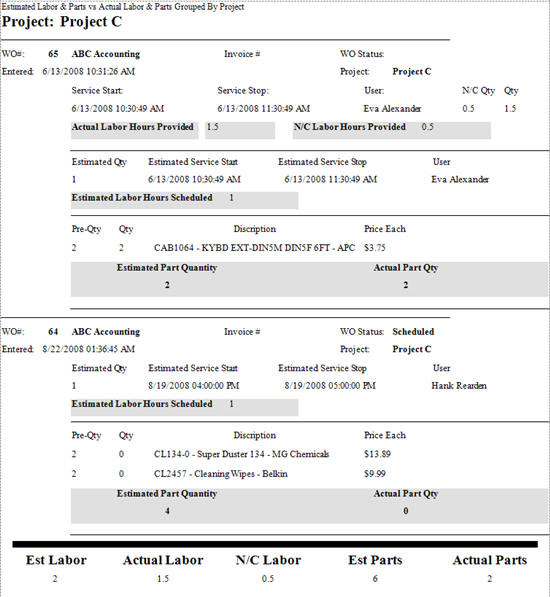
Suggested use for this report is to filter your Service Workorders grid by a specific project, and than select this report template. This report will show the estimated quantity from each Scheduled Users section, the actual service rate quantity and the N/C service rate quantity, and the estimated part quantity and the actual part quantity. (Estimated part quantity could come if workorder was generated by a quote or PM where you had pre-enterd the part quantity)
For example, Service Workorder grid below is filtered by the Project column
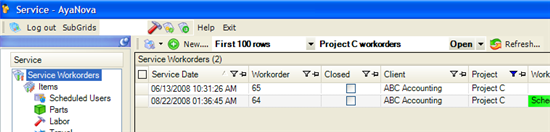
And than the report is selected
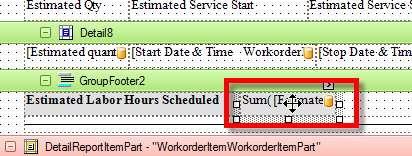
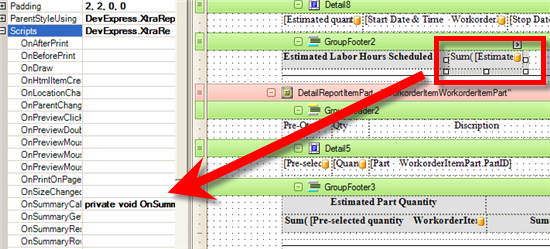
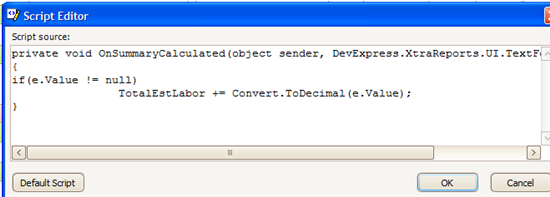
This report template uses scripts in all of the summary fields and the totals. To see these, click on the field in the designer panel, and expand the Scripts property, and view the Script details
Example of report with "header" showing letter of the alphabet (like an index)
First posted 2010 · Back to list
Example of use, you want to print off a list of all of your clients, but want to have a header show each letter of the alphabet such as the header would be a letter A and then all clients that start with the letter A would be listed under, and then the next header would be a letter B and all clients that start with the letter B would be listed under and so on.
image lost
Bit of a funky script to do this, as you need to store the variable of current character in the header and compare it to each client to see when next list the next, and than print or not print the header depending, as well as move and resize the labels that do or do not show.
Have attached an example report template where this has been done.
Please note as with all report template example and tutorials, you are welcome to download and use as is. If any additional support required (i.e. you are customizing and need help editing the script, or using that script to create your own custom report template, etc), please send details as per the Custom-report-templates topic and would be hapy to provdie a quote
ReportHeader band Before Print script just has the variable declared that we will use to "hold" what is the charcter to use for the header
string CurrentGroupCharacter="";
GroupHeader1 has its Group Fields property set to sort ascending by the Client (so if you forget to place the Client name as the first column in the Client's grid before printing, the report will still sort it for you).
Detail band Before Print script has the following:
private void OnBeforePrint(object sender, System.Drawing.Printing.PrintEventArgs e)
{
//we get the client's name value so we can use it
string ClientName = Convert.ToString(GetCurrentColumnValue("LT_O_Client"));

//suck out the first character of the client's name string
string CurrentNameFirstCharacter=ClientName.Substring(0, 1);

//Check if first character has changed...
if (CurrentNameFirstCharacter != CurrentGroupCharacter)
 {
 //as has changed, than the new first character is put into the label field label4 and we increase the height of the detail band to fit this as well as the labels for the client and other fields
 CurrentGroupCharacter = CurrentNameFirstCharacter;
 label4.Text = CurrentGroupCharacter;
 Detail.Height = 84;
 label4.Visible = true;
 label2.Top = 67;
 label3.Top = 67;
 }
else
 {
 //if not showing the header with the single character, than we tell it to not show the label4 and shrink it, as well as move up the other labels and change the height of the detailband
label4.Top = 9;
label4.Height = 17;
label4.Visible = false;
label2.Top = 9;
label3.Top = 9;
Detail.Height = 25;
 }

}
Example report showing grand total on single line - useful for exporting too
First posted 2012 · Back to list
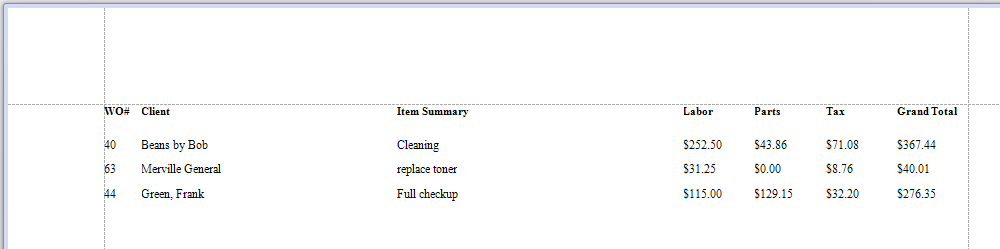
Very happy to be able to provide here for anyone an example custom report template that when printing, only prints a single line totalling up all labor records and part records and grand total on a single line as per the screenshot below:
Download the zipped file SampleTotalsOnSingleLine.zip
Extract
Via your Report Templates grid in AyaNova 7, import the extract report template file
Move to your Service Workorders grid
Drop down the Print menu, hold your SHIFT key and select the SampleTotalsOnSingleLine report template to open if via the report template designer
You will see that the Design is a detailed type report template, with no actual datafields set to show in the Detail bands for the Labor and the Parts as well as the workorder item and workorder header.
These Detail bands are required to be able to use scripts to obtain the totals for each labor net to add to a running total to display in the report footer; to obtain the totals for each part net to add to the running total to display in the report footer; to obtain the totals for Tax A and Tax B and add to a running total to displayin the report footer; and to add all of these to a grand total running total to also display in the report footer - which is the single line showing the total for each workorder record.
View the Scripts section of the report template design to see.
Example simple report for exporting
First posted 2008 · Back to list
Received an email from an AyaNova user having a question about creating a simple report that would produce a CSV file with the following information:
Only report on workorders that are Service Completed but not Closed
Display the data in the CSV file as
Client account number – WO number – WO headline – ServiceRate – Billable hours (aggregated) pr ServiceRate
An example of result for this report could be:
100001;1202;”PC-problems”; Technician-Day;2,5
100001;1202;”PC-problems”;Engineer-Day;3
100001;1203;”Installing AV”;Technician-Day;1
100005;1204;”Installing programs”;Technician-Day;2
For the requirement of only reporting on workorders that are Service Completed but not Closed, the AyaNova user would filter on their Service Workorders grid - filter the Service Completed column selecting (True), and filter on the Closed column selecting (False)
For the report itself to obtain the data so that it can be listed in CSV format:
Created a new detailed report template
Added the band for WorkorderHeaderWorkorderItem under the WorkorderHeader, and added the band for WorkorderItemWorkorderItemLabor under that as would for any detailed report template (see also tutorial on creating detailed workorder report template if needed )
Created a Table with five columns in the WorkorderItemWorkorderItemLabor band and set AnchorVertical to Top and Bottom
Bound each field to its appropriate datafield - i.e. first tablecell to WorkorderServiceDetailed - WorkorderHeader.LT_Client_Label_AccountNumber for the client account number, last table cell to WorkorderServiceDetailed - WorkorderHeader.WorkorderHeaderWorkorderItem.WorkorderItemWorkorderItemLabor.LT_WorkorderItemLabor_Label_ServiceRateQuantity for the Service rate quantity
Saved
To create the CSV file for workorders that are Service Completed but not Closed:
Filter Service Completed and Closed columns in the Service Workorders grid
Select this sample report template and view its Print Preview
In Print Preview select the menu option Export document....
Select CSV File
checkmarked the "Quote strings with separators"
Saved the file
Opened the file using NotePad and confirmed data is in the layout needed.
You can download a sample of this report template Sample Simple Report For Exporting from https://www.ayanova.com/Downloads/ReportTemplates/Samplesimplereportforexporting.zip , import it and refer to it. I encourage you to refer to this when creating your own.
Examples of using API Methods to bring in data into reports
First posted 2010 · Back to list
For experienced developers, AyaNova 6.5 and higher now includes the ability to use API Methods to bring in data not available through the report templates datasets.
For example, using API Methods, you can now bring in the Unit's custom fields into a service workorder's report template.
See the Development SDK API section of this forum for details
Format Quantity to remove trailing zeros on a Simple Number field
First posted 2020 · Back to list
This how-to was kindly provided by a service company using AyaNova.
If your AyaNova database is networked using SQL, you may have one or more reports display trailing zeros.
Resolve this by customizing your report template to force the report to use the number format from your computer settings:
Open up the report to edit mode by choosing Shift and choosing the report to open.
Using The example image below to edit a simple number field:
Choose the Field to be modified 1, DATA BINDING 2, TEXT 3, FORMAT STRING 4.
A popup window will appear where you will choose NUMBER 5 , the CUSTOM tab 6, and type in “g29”
into the custom entry field 6.
Choose OK and save the changes. Go to your PREVIEW tab for your report and verify the changes took effect.
Format Quantity to remove trailing zeros on a Sum field
First posted 2020 · Back to list
This how-to was kindly provided by a service company using AyaNova.
If your AyaNova database is networked using SQL, you may have one or more reports display trailing zeros.
Resolve this by customizing your report template to force the report to use the number format from your computer settings:
Open up the report to edit mode by choosing Shift and choosing the report to open.
Using The example below to edit simple number field:
Choose the Field to be modified 1, DATA BINDING 2, TEXT 3, FORMAT STRING 4.
A popup window will appear where you will choose NUMBER 5 , the CUSTOM tab 6, and type in “g29”
into the custom entry field 6.
Choose OK and save the changes. Go to your PREVIEW tab for your report and verify the changes took effect.
How to have report print only objects that have data in a certain field (not empty)
First posted 2010 · Back to list
Normally, to print a report of objects that have certain data or nothing in a certain field, you would filter on the grid so that only those records show.
For example, if you want to report on all clients that have the contract Gold Service, you would filter the column Contract in the Client grid selecting the Gold Service, and only clients with this contract would show. And then you could print a list of these clients.
Or another example, if you wanted a report of all clients that did NOT have a contract at all, you would filter on the column Contract for blanks, and only clients without a contract would show so that you could print a list of these clients.
But what is the field is not an available column to filter on in that grid?
For example, what if you wanted a report that lists all clients that do not have any text in their Pop Up field. If you view your Clients grid possible columns, you will see that PopUp is not an available column so you can not filter by it.
Instead if the field is available in a detailed type report for that object, then you can create a report that uses a script to determine.
For example:
1. Have created a detailed type report template from the Client grid that shows the client's name and the Popup fields. If we run this report, we see that it lists clients with text in this field and clients without.
2. So we further expand on the example scripts found in many of the sample report templates
3. We create a Before Print script for the detailReport1 band that checks to see if there is any text in the PopUp field. And if there is not, then the report does NOT print that bands data - in other words, it does not print that client that does not have any popup
The Before Print script has the following:
private void OnBeforePrint(object sender, System.Drawing.Printing.PrintEventArgs e)
{
//*************************
 //Don't print band if there is no text in the popup notes

 object o=GetCurrentColumnValue("LT_Client_Label_PopUpNotes");
 if(o=="")
 {
 e.Cancel=true;
 return;
 }
//**************************


}
4. And now when we print the report, only the clients that do have text in the Popup field will print.
5. Have attached a copy of the example report template zipped using WinZip to this forum topic. You may download and refer to it along with other examples on this forum.
How to print two print jobs of a report at the click of the Print Direct menu option
First posted 2006 · Back to list
I've been working with the developers of the third party report designer that is used with AyaNova to determine a way to automatically have a report template always print out two print jobs.
This could be very useful if you always want a report to print two copies - without having to select to print twice.
And you can also use this same script to be able to automatically print one copy to one tray, and another copy to another tray - all by selecting the Print Direct menu option once.
This could be very useful if you always want a report to print two copies, with one copy from the default tray and the other copy from another tray on the same printer that has different colored paper.
To see how this is down, download the following sample report template
Two Print Jobs - Sample Detailed Service Workorder with Grand Total
-Extract and import into AyaNova.
-Open the Service navigation pane, and the Service Workorders grid.
-Select a workorder to open a workorder entry screen.
-Select Print, and select the report template Two Print Jobs - Sample Detailed Service Workorder with Grand Total
-In the Print Preview window, select the Print Direct menu option - this takes the default printer you have set up in Windows.
-This will now print two copies of this workorder report template to your default printer.
To see how this was done, open this sample report template in the designer and follow along.
-Hold down the SHIFT key and select the Two Print Jobs - Sample Detailed Service Workorder with Grand Total to open it in the report designer.
-As soon as the report template opens, by default it will show the properties on the left for xtraReport1

-select to open the ScriptReferences property

-Three specific strings have been entered in there

-Close the String Editor Collector
-Expand the Scripts property

-You will see that the OnAfterPrint script has been edited - open it up

I won't go into specific details on every line of code in here - suffice it to say is that this adds a second print job to piggy back on to the print job when you select the Print Direct menu option
In this code, I have the second print job going to tray 1 as identified by the line that refers to PaperSource[0]

The way it works internally is the printer identifies the first default tray as PaperSource[0], the second tray as PaperSource[1], a third paper tray as PaperSource[2] and so on.
So if you want the second print job to print to a different tray other than the default first tray, you would change the number from [0] to [1]
I would like it if any user that uses this posts their results. Thank you.
NOTE: AyaNova 6.x and above users will want to download and import this report template - otherwise will get the error as outlined in forum topic Report-error-issue-for-some-AyaNova-6-users
AyaNova 6.x Two Print Jobs - Sample Detailed Service Workorder with Grand Total
How to save report file to use workorder number instead of xtraReport1
First posted 2013 · Back to list
By default, if you save a report template to a file (PDF, XLS, CSV, etc), the file name will default to xtraReport1 (as in xtraReport1.pdf or xtraReport1.csv, etc).
The following is an example of how to include a script in an AyaNova 7 report template so that the file name is taken from the workorder number.
And this example will also include how to suffix preset text as well (i..e report file name saved in PDF format for a workorder # 56 would be 56_SR.PDF)
Download the sample report template https://www.ayanova.com/Downloads/ReportTemplates/FILENAMEISWONUMBERSampleDispatchingReport.zip
Extract and import as per https://www.ayanova.com/AyaNova7webHelp/importing_a_report_template.htm
Move to your Service Workorders grid, open a specific workorder entry screen, open the report template WO NUMBER Sample Dispatching Report
Preview in the report template designer
Select from the Preview menu to Export Document -> select PDF -> OK -> the Save As window displays with the report file saved with this workorders workorder number plus _SR. as in 75_SR.PDF
How this was done:
View the Designer of the report designer for the report template
Via the Property Grid on your left, view for xtraReport1 (if not already showing)
Expand Scripts -> Before Print -> if there is nothign yet set, I select (New). If there is already something showing here, then I go skip and go to the next step.
View the Scripts of the report designer and scroll down to find where the following script was added by the report designer
private void xtraReport1_BeforePrint(object sender, System.Drawing.Printing.PrintEventArgs e) {

}
I added the script line as shown with the whole script below.
NOTE it is extremely important that I specify what the exact name is of the band that is bound to WorkorderHeader dataset where the workorder number datafield is identified from.
In this example report template, the band name is DetailReport
private void xtraReport1_BeforePrint(object sender, System.Drawing.Printing.PrintEventArgs e)
{
xtraReport1.Name= (System.Convert.ToString(DetailReport.GetCurrentColumnValue("LT_O_Workorder")))+ "_SR";
}
And I confirm this works by Preview -> Export Document -> select PDF and OK, and the Save As displays the workorder number
It is expected that if you are printing this report from a grid that is displaying multiple workorders, that the file name will display the workorder number of the first workorder, not all workorders.
How to set up Multi-columns in a report that is not a label
First posted 2010 · Back to list
Let's say for example, your Dispatching Report ends up being a number of pages, because you use Tasks
Rather than have each task listed on one line, you could have two columns.
First I will show an image of what my example report template looks like before I make any changes. Right now in Detail5 band, the task related datafields take up the whole width of the page, and only one task per line.
So now I edit doing the following:
1. First, move and adjust all the fields that will display to the left more than half way (as you will be wanting two columns, so you can only use half of the page for where your datafields are located)
2. Now click on the band where the fields are located, to select it so that you can view its Property Grid (in screenshot below, this happens to be the band called Detail5)
3. Expand the Multi-Column Options by clicking on the +, and edit.
In my example, I edited the Column Count to 2, and edited the Direction to First Across, then Down
4. Preview and see how it looks. And edit further as needed. In my preview below,the Tasksnow display side by side.
How to use True / False fields in report templates - checkboxes, custom text
First posted 2006 · Back to list
Below is information and reference to existing sample summary and detailed report templates and different ways to be able to display the checkmark or not in a checkbox in a report template in AyaNova v3
If using a Summary Report Template dir=ltr >
From the Service navigation pane Service Workorders grid, select to display the Service Workorders Invoiced sample report template.
A workorder that has Service Completed check-marked, will display so on this report.

To identify how this is accomplished in a summary report template such as the Service Workorders Invoiced report, open that sample report template in the report designer.
Drop down the Print, hold the SHIFT key and select the report template Service Workorders Invoiced
On the Design Panel, select the field xrCheckServiceComplete
Select the Properties tab on the left
Expand the DataBindings Property
Expand the CheckState property
The CheckState Binding is to the Service Completed data field.

If using a Detailed Report Template dir=ltr >
From the Service navigation pane Service Workorders grid, select to display the Dispatching Report - Scheduled Users & Tasks
You will note that if a part has been selected in the workorder item, and has been check-marked that it was already used in service, the report will also display this.

To identify how this is accomplished in a detailed report template such as the Dispatching Report - Scheduled Users & Tasks report, open that sample report template in the report designer.
Drop down the Print, hold the SHIFT key and select the report template Dispatching Report - Scheduled Users & Tasks
Select the Properties tab
Drop down and select xrUsed which is the name given to the checkbox in this report template.

You will see that on the Design Panel that the checkbox is identified as the field property being looked at.

Expand the Scripts property
Select to open the script editor for the OnBefore Print

This script is used to display a checkmark or not depending on the value of the Used field in that workorder item’s part selection.
If have created a customfield set for data type of True/False, and you want to show a checkbox on a report for this custom field here is an example of using a script to display either checked or not with a workorder item custom0 field of data typeTrue/False
Sample Report Using Custom True False Field
Because the Custom0 field is from the WorkorderItem section of a workorder, - a band for the WorkorderItem was made, and than fields that will be relating to the workorder item section of the workorder are placed there
I added two new fields dragged from the Toolbox into the WorkorderItem band detail area because I will be referring to workorder item data fields
The field xrLabel2 - if you take a look at the OnBeforeScript property - has a script so that you can see what the actual value of the field is dir=ltr >
private void OnBeforePrint(object sender, System.Drawing.Printing.PrintEventArgs e)
{
xrLabel2.Text = Convert.ToString(DetailReport.GetCurrentColumnValue("LT_WorkorderItem_Label_Custom0"));
}
The field xrCheckBox2 (has Text property edited to AntiVirus) if you take a look at its OnBeforeScript property, uses a script to set the value of the CheckBox to true (a checkmark) if the string of the field is True - otherwise it leaves it as false if it is Null or False ) because a custom field set to True/False could be True, could be False or could be Null (null if hasn't been set either False or True yet) dir=ltr >
private void OnBeforePrint(object sender, System.Drawing.Printing.PrintEventArgs e)
{
//this script obtains what the value is of the custom field object
//converts it to a string
//if the string value is "True" than the checkbox gets checked, otherwise it does not get checked

if ((DetailReport.GetCurrentColumnValue("LT_WorkorderItem_Label_Custom0")).ToString() == "True")
 {
 xrCheckBox2.Checked = true;
 }
else
 {
 xrCheckBox2.Checked = false;
 }
}
Here is another suggested script to use if are using custom True/False fields and want True to display not as a checkmark, not as the text True, but instead as the text Yes.
Below example script is from the OnBeforePrint script property for the DetailReportItem band (the Workorder Item band) of a Detailed report template from the Service Workorders grid; and the field in the detail section of this band is xrLabel17, and the datafield in question is the Custom3 field.
Of course if your detail band is called something other than DetailReportItem, than you would need to edit that in this script, as you would have to edit if your field is called something other than xrLabel17, or if your custom field is other than Custom3 dir=ltr >
private void OnBeforePrint(object sender, System.Drawing.Printing.PrintEventArgs e)
{
//this script obtains what the value is of the custom field object
//converts it to a string
//if the string value is "True" than the field gets the text "Yes" shown
//otherwise the field will show the text "No"

if ((DetailReportItem.GetCurrentColumnValue("LT_WorkorderItem_Label_Custom3")).ToString() == "True")
 {
 xrLabel17.Text = "Yes";
 }
else
 {
 xrLabel17.Text = "No";
 }
}
Labor Action Report Summary (LARS) by Type - provided by AyaNova user
First posted 2008 · Back to list
Leonard Quasarano of DPS Technical Services has kindly passed on this report templateas had not seen a report like this in the sample list sohe thoughthe wouldshare this one with other AyaNova users.
This was needed for a client who has multiple cost centers (we organized them by Client with a Head Office) and wants a breakdown of the hours (Service Rate Quantity) at each location. I categorized the hours within “Workorder Item Type” and added the “Workorder” and “Summary.” This was made under the “Labor Grid.”
Labor Action Report Summary (LARS) by Type

List of parts used in workorders with no duplicates
First posted 2009 · Back to list
Here is an example of a report template from the Parts grid in the Service navigation pane that will provide a list of parts used in workorders without showing duplicates.
This report might be useful if you want to print out a list of parts actually used, so that you can "clean" up your inventory and delete the parts not used (how fast a workorder entry screen loads depends on the number of parts it has to precompile for display)
This summary report template was made following these steps:
1. First sorted teh Parts grid in the Service navigation pane by the Part column - so can easily see we do have duplicates listed of parts used, but want a report listing each part without duplicating.
2. Created a new summary report template from the Parts grid in the Service navigation pane
3. Use the wizard to create a new report template selecting the part datafield
4. Inserted a GroupHeader band
5. Dragged the label for part to its area
6. Edited the Text property so it was just labeled Part
7. Preview shows the report as is right now, and you can see that duplicates of the same part is listed
8. Click on the part datafield to select it, and edit its Behaviour property Process Duplicates to Suppress and Shrink
9. Now when you preview, the part is listed only once
Optionally, drag the Quantity datafield from the Field List placing beside the Part datafield in the detailBand1
When you preview, you will see that the report will automatically sum the quantity for each part!
Download the zipped example report template Which parts and how many sold
Making each workorder item start on a new page
First posted 2007 · Back to list
Received the following email from an AyaNova user, and wanted to share this with other AyaNova users:
We have just started to use Dispatch reports, as we’ve added a new technician, and to help keep our time straight its nice to have a customer sign off on the job. The problem I’m having is with printing dispatches for jobs that have multiple workorder items. Is there any way I can print a dispatch report for just ONE particular item on a workorder? What is happening is say we don’t bill someone for 2-3 weeks but we do several different jobs in that time, they usually go on one workorder. Now every time I want to print a dispatch for just the particular NEW item, the dispatch report is like 6 pages long and includes all the other work items, whether they are status closed or not. I would even be happy if I could FORCE the report to format them nicely at 1 item per page, that way I could tell it just what page to print. I cannot see printing a 6 page dispatch every time a new item is added to existing open work…
Attached is a further customized Dispatch Report template that will print out each workorder item starting on a new page. Do note that your workorder item may span multiple pages depending on the amount of info you have per workorder item, but this way, it always starts on a new page. When previewing the report, you can than print specifying the specific pages you do want to print.
Download and extract the Dispatching Report - Each Item Starts On New Page
-****Import it
-****Open a workorder that has multiple workorder items
-****Open this report template "Dispatching Report - Each Item Starts On New Page" via the report designer (select from the Print menu in the workorder, hold down the SHIFT key, and select this report template)
-****Now you will see that the Visible property for the Detail1 band of the WorkorderHeader has been set to FALSE - you could also delete the fields in this band as will not show, but just showing you here what was done
-****And that I have recreated the fields that are in the Detail1 band of the WorkorderHeader into the Detail2 band of the WorkorderHeader.WorkorderHeaderWorkorderItem (scripts have been edited for the correct field name, data has been bound etc)
-****Click on the Detail2 band, and see that the property PageBreak has been set to BeforeBand - what this is doing is every time there is a new workorder item in this workorder, it will start on a new page but also include the workorder #, client contact info, scheduleable user notes etc from the workorder header.
Manual muliplication of quantity by part price via scripts
First posted 2007 · Back to list
Had an interesting request from an AyaNova user - here is the scenerio:
They want to use the Discount field in the sub-section Parts in a Quote entry screen to "mark up" a price, instead of using it to decrease a price.
My suggestion todo this is to enter a negative amount into the Discount field:
For example, if you applied a discount of 20% (0.20) against a part price that is $3.75, the resulting price would be $3.00
Whereas if you applied a negative amount (-0.20) against a part price that is $3.75, the resulting price would be $4.50 - whichis ineffect marking up the price.
Now they also want to have a report for themselves so that they can compare the original price with no markup against what the customer would be charged with the markup.
As as example, I have provided below a specifc sample report template that is based off of the Sample Detailed Quote.
Sample Detailed Quote with No Markup compared Against Markup
Download, extract and import. Open up in the report designer and follow along to see where and how the original Sample Detailed Quote was edited to arrive at this report template
I added the following variables to the existing OnBeforeScript for the ReportHeaderBand1 as these will be used in scripts in this report template dir=ltr >
decimal TotalNetPartPrice = 0;
decimal TotalWOPartPrice = 0;
In GroupHeader3 band (the groupheader for the Parts section of this report template), I added an additional cell xrTableCell97and edited its text to show as Before MarkUp Net
I also edited the text for other fields in this groupheader identifiying which are not markup information, and which are (those that are have the markup (what isoriginally identfiied as the Discount field)percentage applied automatically by AyaNova)
In the Detail3 band area, I added an additional cell xrTableCell98 and edited its OnBeforeScript property with the following: dir=ltr >
private void OnBeforePrint(object sender, System.Drawing.Printing.PrintEventArgs e)
{
//this gets the value of the original price of the part and multiples it by the quantity to display in this field what the Net
//amount would be with no markup
xrTableCell98.Text = string.Format("{0:c2}", (Convert.ToDouble(DetailReportItemPart.GetCurrentColumnValue("LT_WorkorderItemPart_Label_Price"))) * (Convert.ToDouble(DetailReportItemPart.GetCurrentColumnValue("LT_WorkorderItemPart_Label_Quantity"))));

//this keeps a running total of the net price with no markup for display in the groupfooter
TotalNetPartPrice += Convert.ToDecimal((Convert.ToDouble(DetailReportItemPart.GetCurrentColumnValue("LT_WorkorderItemPart_Label_Price"))) * (Convert.ToDouble(DetailReportItemPart.GetCurrentColumnValue("LT_WorkorderItemPart_Label_Quantity"))));
}
In the GroupFooter2 band, I added an additional cell xrTableCell96 and edited its OnBeforeScript property with the following: dir=ltr >
private void OnBeforePrint(object sender, System.Drawing.Printing.PrintEventArgs e)
{
//this displays in this field the total net price if no markup was applied
xrTableCell96.Text = string.Format("{0:c2}", TotalNetPartPrice);

//this keeps a running total for display at the bottom of the report
TotalWOPartPrice += TotalNetPartPrice;

//this sets the variable back to 0 in case there are additional workorder items with parts so that amounts are added correctly
TotalNetPartPrice = 0;
}
I added to the existingReportFooter1 bands OnAfterPrint script the following so that if printing off multiple quotes at once, this is reset back t
Here is another rendition of this sample report template, but that also includes identifying the costs of the parts, and the total costs of parts for the quote - suggestion would be for internal use.
Sample Quote with Costs and With No Discount compared against Discounted Parts
This sample report uses the scripts identified above, but has had additional variables added for the Net cost variable and the Total workorder Part cost variable, as well as OnBeforeScripts for the Net Part Cost field in the groupfooter for parts, and the Workorder Part Costs field in the report footer; as well as showing how a subtraction is used in a script to subtract the total workorder No Discount amount from the Discounted part amount in the report footer.

NEW Banked Service Showing Hours Balance Based Grid Sorted by Effective Date Using Scripts
First posted 2007 · Back to list
This report template is suggested for those that did not enter the bank service amounts on the day the actually applied to.
For example, in the first screen shot below, an addition of 5 hours was actually entered on Feb 17 2007, but the amount was for the actual effective date of December 20 2005.
Therefore the Hours Balance as shown by the grid isn't in keeping with the effective date.
To print out a report that shows hour balance based on the effective date, you must first sort the Bank Service grid by the Effective Date with the first effective date listed first - this is important or else the hours balance will not display correctly.
Download the report template NEWBanked Service Showing Hours Balance Based Grid Sorted by Effective Date Using Scripts


No charge hours calculation
First posted 2006 · Back to list
The report template you have further customized appears to be the sample Detailed Service Workorder with Grand Total.
A report can only print what you have told it to do. In this case, you have added a new field in the Labor band's groupfooter areato display the group sum amount for the datafield No Charge Quantity. You haven't told the report to subtract this amount from any other fields.
But the main thing is - the way we have developed AyaNova, is that No Charge Hours are the hours you enter that are no charge, and the Service Rate Quantity field are the actual hours that are charged, the billable hours.
For example, you may have been onsite from 11AM till 3PM which is a total of 4 hours, but charged for only 3 hours.
So you would enter 3 into the Service Rate Quantity field, and 1 into the No Charge Hours field in the workorder.
This way, when you print off a report for the client, only the quantity in Service Rate Quantity is charged against the $ amount of the rate, and taxes are figured from this as well.
From what it sounds like, you are entering all hours both no charge and billable into the Service Rate Quantity, whereas AyaNova and the sample report templates we provide are developed based on only billable hours are entered into the Service Rate Quantity.
This report may be able to be edited to subtract the amount from the Service Rate Quantity and than to subtract the amount from the taxes and the total dollar amount, but it no way would it be easy nor would it be quick. It would require many many hours to figure out how to sidestep fundamental aspect of the AyaNova program.And all reports are based on this feature - that only billable hours are entered into Service Rate Quantity - so more than just this report would have to be edited.
Your report right now does show the total amount of No Charge Hours for each workorder, and it could be additonally customized to mulitple this amount by the Service Rate to get an amount of what the client "didn't have to pay for so that they can see, as well as show this total amount at the bottom of the report- because the whole idea is to let your client know you provided them something at no cost for goodwill. Let me know if you want to go this route, and I will as soon as I can add these scripts to do this into this report and post back to this area for others as well.
Butyou need toenter only billable hours into the Service Rate Quantity, and hours that are not billed into the No Charge Hours field.
> masonworks (10/11/2006)In the scripts that you are speaking of...is it possible to show the fields only if they are populated? (Like much of the rest of the report)
Hi
Not sure what you mean exactly - do you mean not show a specific data field if there is no data - if so, which field?
> masonworks (10/11/2006)Yes, that is what I mean. Do not show the field if there is not data. I am speaking of the Discounted Hours field we are looking at. If there were no 'no charge' hours on the workorder, do not display on the report.
I think you mean that if the hours are 0, to not show the number 0, nor to show the Discounted Hours label.
I can take a look at thatto see if possible and what isinvolved. Will post back.
As you can see by the time stamp of this topic reply, this has taken some doing - but I got it.
This report template is based on the sample Detailed Service Workorder with Grand Total report that was initially edited by masonworks and has now been further customized to include a total of Net NC charge amount derived from NC Hours multipled the Service Rate Charge; the Net NC Hours; and at the report footer, a total of NC Hours and total of NC charge amount derived from NC Hours multipled the Service Rate Charge.
This report could be useful if you provide no charge labor to your clients - showing on the report you provide them the amount of no charge hours and the potential currency amount of no charge that you did not charge them. This provides value in the eyes of your clients - if you are not going to charge them for something, let them know they received that.
And the report includes scripts so that if there isn't any NC Hours, it doesn't show any labels for these fields. As you may not want to provide a report to your client that says 0 NC Hours.
To do this requires scripts to be applied as well as the fields.
Download and importthe report template, open it in custom report designer, and follow along by selecting the properties where indicated so that you can see how done.
Select the ReportHeaderBand1, select the Properties tab, expand the Scripts property, and open the the OnBeforePrint script property.
In the existing script have added the variables where the running totals of NC Hours and NC Amount will be kept
decimal NetNC = 0;
decimal NetNCAmount = 0;
Also added into this script setting the default heights for the two panels that we want to show only if the NC Hours is more than 0. These initially set the default height of these panels to 0 (shrunk).
int pnlNetNCAmountDefault=0;
int pnlTotalNCAmountDefault=0;

pnlNetNCAmountDefault=pnlNetNCAmount.Height;
pnlTotalNCAmountDefault=pnlTotalNCAmount.Height;
In the Detail1 band for the DetailReportItemLabor band have placed the panel pnlNetNCAmount with the field xrLabel12 that is just text, and the field xrLabel15 that is derived from the NC Hours multipled the Service Rate Charge for that labor item.
You can see the script for xrLabel15 by selecting it, select Properties tab, expand the Scripts property, open the OnBeforePrint script property:
private void OnBeforePrint(object sender, System.Drawing.Printing.PrintEventArgs e)
{
//this gets the value of the NC Hours object, coverts it to decimal and holds it in the NCQty variable
decimal NCQty = Convert.ToDecimal(DetailReportItemLabor.GetCurrentColumnValue("LT_WorkorderItemLabor_Label_NoChargeQuantity"));
//this gets the value of the Service Rate Charge, converts it to decimal and holds it in the NCRate variable
decimal NCRate = Convert.ToDecimal(DetailReportItemLabor.GetCurrentColumnValue("LT_WorkorderItemLabor_Label_LaborRateCharge"));
//this multiplies the NCQty by the NCRate to produce the NCAmount variable
decimal NCAmount = NCQty * NCRate;
//this format the NCAmount variable first to currency and than to a string to place as text into the xrLabel15 field
xrLabel15.Text = string.Format("{0:c2}", NCAmount);
//this states that if the NoCharge Qty is 0, to set the field xrLabel15 to not be visible
xrLabel15.Visible=(0!=decimal.Parse(DetailReportItemLabor.GetCurrentColumnValue("LT_WorkorderItemLabor_Label_NoChargeQuantity").ToString()));
//this maintains a running total of NCAmount into the NetNCAmount we will use at the end of the report
NetNCAmount += Convert.ToDecimal(NCAmount);
}
Select the Detail1 band of the DetailReportItemLabor, select Properties, expand Scripts and view the OnBeforePrint script property where have added the additional code so that this panel doesn't show and also shrinks up if NC is 0
if(DetailReportItemLabor.GetCurrentColumnValue("LT_WorkorderItemLabor_Label_NoChargeQuantity").
Have edited this and reposted it
-Delete the previous report template
-Download the MARCH1 Sample Service Workorder with No Charge Amount
-Extract
-Import into AyaNova
The previous sample report template posted on Feb 7th would not show the No Charge Amounts if there were regular labor charges after the No Charge amount
Parse Error, no assembly associated with Xml key error possible solutions
First posted 2009 · Back to list
Situation that occurs:
When you attempt to run a report, you may get an error similar to:
261: The type 'DevExpress.XtraPrinting.TextAlignment' exists in both 'c:\Program Files\Ground Zero Tech-Works Inc\AyaNova\DevExpress.Data.v9.2.dll' and 'c:\WINDOWS\assembly\GAC\DevExpress.Utils3\3.2.1.0__79868b8147b5eae4\DevExpress.Utils3.dll'
Or an error similar to:
Parse Error, no assembly associated with Xml key a3:http://schemas.microsoft.com/clr/nsassem/DevExpress.XtraPrinting/DevExpress.Utils3%2C%20Version%3D3.2.5.0%2C%20Culture%3Dneutral%2C%20PublicKeyToken%3D79868b8147b5eae4 PageInfo
Why?:
This issue appears to be tied to the report template having been originally created with an older AyaNova 3.x version, and the latest printing controls that AyaNova 6 uses is not able to work with them.
Whereas if a new copy of the report template is created in AyaNova 5 (by opening the report template in the designer and selecting Save As) and that copy imported into AyaNova 6, it works fine.
Refer to topic Report-error-issue-for-some-AyaNova-6-users for the 3 solution options
Prefixing text to workorder number
First posted 2012 · Back to list
Wanted to post another sample report template showing an example of a script used to prefix text to the workorder number.
This can also be used as an example to refer to if want to prefix text to any data field.
This report template is a copy of the Sample Detailed Service Workorder with Grand Total
Download Custom Detailed with Script Prefixing XXX to WO Number
Download and extract, and import into AyaNova.
Report will display for selection from the Service Workorders grid in the Service navigation pane.
Preview the report so you can see that it shows your workorder numbers with XXX prefixed
Open report template in your report template designer
Use your mouse to select the xrLabel1 field (where the workorder number displays) and view its Properties
You will note that there is no data bindings
You will note that there is now a Before Print script
View the script
You will see that the LT_O_Workorder is called via the script as well as prefixing the XXX to it.
Use this example to customize your own report templates
Report templates geared towards unit history - accessed from Items grid with grid filtered to show records for one Unit only
First posted 2006 · Back to list
This topic has a number of different Unit History report templates useful to view service history for units selected for service in workorder items.
To display all workorder items for a specific unit
1. View the the Items grid in the Service navigation pane:
2. filter by the client ABC Accounting which first gave me a list of workorder items for this client
3. filter by the unit (Serial Number column) which gives me a list of workorder items where this unit was selected
Now only workorder items where this unit was selected display
Than select a report which will obtain data based on what is displaying in the grid.
Also refer to AyaNova v3 Manual sections:
"Use of Grids and SubGrids"
The "Service Navigation Pane" section which includes the tutorials "Filtering and Sorting a Grid" and "Printing a Report for All Service Workorders Displayed in a Filtered Grid"
In the "Administration Navigation Pane" section, the "Report Templates" section which includes importing a report template
The "Printing" section which inclues preparing displayed data in a grid for printing a report
In the "Technical" section "Creating Custom Reports"
Some basic Unit History report templates to download and import:
Unit History Report- Used the Detailed Report Templatein the Items grid of the Service navigation pane to create this custom report template (unit, workorder #, workorder header Service Date, Service Start Date & Time, User that performed the service, Service Details) (note: report requires that you filter to show only one Unit - otherwise all workorder items listed will appear on the report as if for the for the first unit in the grid)
Unit History Report Summary - Used the Summary Report Template in the Items grid of the Service navigation pane to createthis custom report template (workorder #, workorder header Service Date , Unit Service Type, Item Summary)
Here's another Unit History type report template based to look more like that of AyaNova CE's Unit History report also available from the Items grid.
Unit History Report Like AyaNova CE
If you check out the report designer of this report template, you will notice that I have included that in addition to displaying Labor if applicable, it will also display Parts if selected in the workorder item. I also included the other sub-datasets in the report template to get you going if you want to customize further
If you don't want parts to display, than customize to either set the property Visible to False for the Part detail bands, or delete them entirely.

Here's a couple more samples of a Unit History Report that will also compatible with the new printing engine that will be released with the new AyaNova v3.3.X maintenance release late Dec / early January (these replace the previous sample report templates posted here earlier)
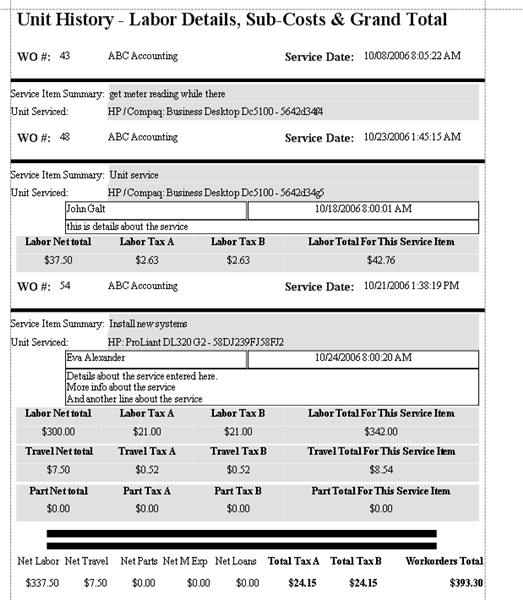
Sample Unit History Report showing Labor details plus SubCharges and Totals
This sample report template looks like:
Sample Unit History Report showing SubCharges and Totals only
Similar to the report template above, but the detail bands property Visible have been set to False – so only the subtotals and the Grand Total displays in addition to the Item Summary and Unit Serviced along with WO# and client.
Unit History Report with Service Details
Download and import.
Suggestion for use: From the Units grid, filter to display workorder items that have units selected in the records (i.e. filter on the Serial column by selecting <NonBlanks> ) to get a report on service on all units grouped by the client
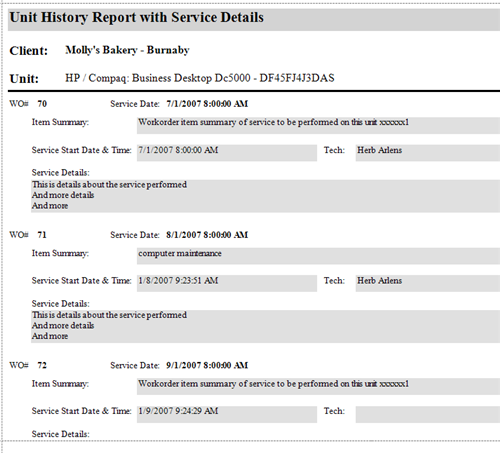
You can of course also customize further, including quantity of hours performed, Unit Service Typeand more.
Reporting: Example of using API Methods to bring in Unit's Warranty information
First posted 2011 · Back to list
The following topic is about using the AyaNova developers API with reports are examples we have provided for experienced developers.
Also see other examples in the API and Development section of this forum - look for the posts that title is "Reporting: Example of using API Methods to......"
If you do not have development experience, we are happy to provide you with a quote to prepare a specific custom report that uses the API to obtain data not available through its datasets. Contact support@ayanova.com with details of what you would like - i.e. from what grid the report would be available from, what data it is that you want, example of use, etc.
In this example, we want to show in a detailed report template the unit's warranty information that displays in the service workorder entry screen

1. Download and import the sample report template UNIT WARRANTY INFO Sample report.zip and review its scripts for an example of use. You will also want to refer of course to the http://api.ayanova.com business object library.
2. As always, declare the namespace in the Before Print for the whole report in xtraReport1
using GZTW.AyaNova.BLL;
using CSLA;
3. Example of what is in the Before Print script for the detail band where the unit datafields are:
private void Detail2_BeforePrint(object sender, System.Drawing.Printing.PrintEventArgs e)
{
///Only do this if there is a unit selected
if(!string.IsNullOrEmpty(DetailReportItem.GetCurrentColumnValue("LT_Unit_Label_Serial").ToString()))

  {

//The Unit object does have a method to retrieve it's ID from it's serial number however the serial number column
//in the report contains other text besides the serial number so it's not possible to use that method, instead we'll get it from the workorder:


//first get the id of the Item - note the "DetailReportItem" I'm calling GetCurrentColumnValue on the woitem id
Guid gWOItemID=new Guid(DetailReportItem.GetCurrentColumnValue("ID").ToString());

//now that we have the Item we can fetch the workorder from the woitem id
Workorder w = Workorder.GetWorkorderByRelativeNoMRU(RootObjectTypes.WorkorderItem, gWOItemID);

//now get the correct workorder item from this workorder
WorkorderItem wi = w.WorkorderItems[gWOItemID];

//Now get the unit on this workorder item
Unit u = Unit.GetItemMRU(wi.UnitID,false);

	//to display the unit's warranty info, need to


	{
                string sDate = "";
                if (u.WarrantyExpiryDateResolved != null)
                    sDate = ((DateTime)u.WarrantyExpiryDateResolved).ToLongDateString();
switch (u.WarrantyStatusResolved)
{
case WarrantyStatus.None:
                        label3.Text = string.Format("{0}", "Unit is not warrantied." );
                        break;
case WarrantyStatus.Expired:
                        label3.Text = string.Format("{0}{1}", "Unit's warranty expired: ", sDate);
                        break;
case WarrantyStatus.Active:
                        label3.Text = string.Format("{0}{1}{2}{3}","Unit is warrantied until: ", sDate, " with terms: ", u.WarrantyTermsResolved);
                        break;
                }
        }

  }

}
Reporting: Example of using API Methods to display PO vendor and client data
First posted 2013 · Back to list
The following topics about using the AyaNova developers API with reports are examples we have provided for experienced developers.
If you do not have development experience, we are happy to provide you with a quote to prepare a specific custom report that uses the API to obtain data not available through its datasets.
To receive a quote, please review and provide as per step #3 of forum topic Custom-report-templates
Why we are providing this example:
Open the example Sample Purchase Order Detailed Report template in the report template designer
Click on xrLabel19 in the designer panel, and view the Field List so you can see at a quick glance where bound to (you can also expand the Data Bindings Text for this and you will also see it is bound to LT_Contact_Label_FullContact)
In a detailed report for a PO, the report datafields do not include specific phone1, phone 2, street, city, state, etc fields for the vendor, nor for the client
So if you want to display the vendor address in a specific way instead of using the existing FullContact, you could use API methods to do so as per the example provided
***
1. Download the example API method report template https://www.ayanova.com/Downloads/ReportTemplates/APIScriptVendorAddressSamplePurchaseOrderDetailedReport.zip
2. Extract
3. Import as per https://www.ayanova.com/AyaNova7webHelp/importing_a_report_template.htm
4. Open in the report template designer
This report template is a further customization of the existing Sample Purchase Order Detailed Report template that you can use as is or further customize or refer to when creating/customizing your own.
5. You will see additional fields label1, label2, label3, label5, label6 have been added (and their background property set to colors so they are easy to pick out)
6. And that the previous fields xrLabel19(that was bound to the vendor's FullContact datafield), xrLabel18(that was bound to the vendor's FullAddress datafield)
, and xrLabel17 (that was bound to the clients FullAddress datafield) have been removed.
7. Via Scripts you will see that the namespace has been declared in the Before Print for the whole report in xtraReport1 to save typing:
using GZTW.AyaNova.BLL;
using CSLA;
8. And that the Detail band for the DetailReport has had a BeforePrint script added to get the actual PO object, get its vendor and display its individual address and contact fields as specified, and get its drop to client if present and display its individual address fields as specified.
private void Detail_BeforePrint(object sender, System.Drawing.Printing.PrintEventArgs e)
{

//1. create variable called POID and assigning the value of the report field for the LT_Purchaseorder_label_id)
//cause need to know this value to be able to GetItem (in step 2)
System.Guid POID=(System.Guid)DetailReport.GetCurrentColumnValue("LT_PurchaseOrder_Label_ID");

//2. //get the actual PO***object directly and declare it as the purchaseorder oject poo in preparation of the
//other following steps because we will need it at three times: once for  the vendor's contact, another time for the vendor's address
//AND***to get the client address fields
PurchaseOrder poo = PurchaseOrder.GetItem(POID);

//3.  Now get the contact data using the poo
//rather than getting the vendor every time need to get the phone1, the phone2, declare the vendor so can use
Vendor vo = Vendor.GetItem(poo.VendorID);
label1.Text = string.Format("{0} {1} {2} {3} {4}", vo.Phone1, , vo.Phone2, , vo.Email);

// 4. Now get the address data also from this vendor object
//we would NOT***want to write out getting the actual vendor object using Vendor.GetItem(PurchaseOrder.GetItem(POID).VendorID);
//instead we would just get it via the already GetItem vo

//the postal Address fields are within the MailToAddress instead of directly off of the vo
// get vendor oject ->***then gets the mailtoaddress of that vendor oject as that is where the address fields (i.e. city, etc)
Address va = vo.MailToAddress;

label2.Text = string.Format("{0} {1} {2} {3} {4}", va.DeliveryAddress, , va.City, , va.StateProv);
label3.Text = string.Format("{0} {1} {2}", va.Postal, , va.Country);

//similiar also for getting the client address
//EXCEPT***that there is a possiblity of NO***Client being dropped shipped to
//so need to have if / else statement in the event the Guid is empty for the Drop to client

if (poo.DropShipToClientID != Guid.Empty)
  {
   //set these fields to visible
   xrLabel1.Visible=true;
   label5.Visible=true;
   label6.Visible=true;

   //as with the vendor, declare the MailToAddress for the client object as ca
   Address ca = Client.GetItem(poo.DropShipToClientID).MailToAddress;

   //what to show in these fields
   label5.Text = string.Format("{0} {1} {2} {3} {4}", ca.DeliveryAddress, , ca.City, , ca.StateProv);
   label6.Text = string.Format("{0} {1} {2}", ca.Postal, , ca.Country);

  }
else
 {
   //this states that if the client Guid is empty to set the fields to not be visible
   xrLabel1.Visible=false;
   label5.Visible=false;
   label6.Visible=false;
 }


}
Sample Client Billing Hours report template from the Labor grid
First posted 2007 · Back to list
Here is a sample report template that would be accessible from the Labor grid in the Service navigation pane.
Sample Client Billing Hours Report with Grand Total
This report is just a further customization of the Sample Schedulable User Billing Hours report template
I customized the Sample Schedulable User Billing Hours report templatefurther so that the amounts were grouped by Client instead of being grouped by the schedulable user.
-Performed a "Save As" of the Sample Schedulable User Billing Hours report template and named the new report template Sample Client Billing Hours with Grand Total
-groupHeaderBand1 was selected, and then the Properties tab was selected.
-selected the GroupFields property, and edited the Collection so that it was grouped by Client instead of by Scheduable user
-the field xrLabel2 was bound instead to the Client datafield instead of the Schedulable User datafield
-text fields such as xrLabel1, xrTableCell1, xrTableCell2and xrTableCell3 were edited to say "Client" instead of "User"
-report was saved
-Now records filtered to show in the Labor grid will display in this report grouped by client instead of by user.

Sample Detailed Workorder report template where totals derived from scripts
First posted 2007 · Back to list
This report template is based off of the Sample Detailed Service Workorder with Grand Total with the differences:
-that the taxes and line totals derived from AyaNova are removed from the detail bands
-and the total taxes and Grand Total at the bottom are derived from scripts instead of the AyaNova tax amounts and line totals.
Sample NEW Detailed Service Workorder with totals via scripts
(AyaNova 6 and higher users download AyaNova 6 Sample Detailed Service Workorder with totals via scripts)
1. Within the report template I removed data fields such as Tax A, Tax B and Line Total
2. In the OnBeforePrint script for the ReportHeader I added the following
decimal TotalTaxX = 0;
and remove the following as not used in this report template:
decimal NetTaxA = 0;
decimal NetTaxB = 0;
decimal GrandTotal = 0;
3. In ReportFooter1 OnBeforePrint script property I added the following which will reset the TotalTaxX back to 0 before the next workorder record prints.
TotalTaxX = 0;
and removed the following as no longer used in this report template:
NetTaxA = 0;
NetTaxB = 0;
GrandTotal = 0;
4. In the ReportFooter1, I removed the fields xrNetTaxA, xrNetTaxB and xrGrandTotal as will not be using these
5. I created a new label xrLabel18 and edited the OnBeforePrint property with the following so that 6% is multiplied by each of the total net amounts for Labor, Travel, Parts, Loans, Misc Expenses
private void OnBeforePrint(object sender, System.Drawing.Printing.PrintEventArgs e)
{
xrLabel18.Text = string.Format("{0:c2}", TotalTaxX += Convert.ToDecimal(.06 * Convert.ToDouble(NetLabor + NetTravel + NetPart + NetLoan + NetMiscExpense)));
}
If you do not have tax on a net amount then remove it from the OnBeforePrint script. For example, if you only charge tax on Parts and Loans, then edit the script so it instead shows as
private void OnBeforePrint(object sender, System.Drawing.Printing.PrintEventArgs e)
{
xrLabel18.Text = string.Format("{0:c2}", TotalTaxX += Convert.ToDecimal(.06 * Convert.ToDouble(NetPart + NetLoan)));
}
6. I created a new label xrLabel19 and edited the OnBeforePrint property with the following so that the Grand Total is derived from adding the net of Labor, Travel, Parts, Loans, Misc Expenses and TotalTaxX from the xrlabel18 field.
private void OnBeforePrint(object sender, System.Drawing.Printing.PrintEventArgs e)
{
xrLabel19.Text = string.Format("{0:c2}", (NetLabor + NetTravel + NetPart + NetLoan + NetMiscExpense + TotalTaxX));
}
Sample Dispatching Report
First posted 2007 · Back to list
If you need a new copy of the Sample Dispatching Report template, you may downoad from here
Sample Labor Cost for Displayed Workorders report template
First posted 2008 · Back to list
Below is link to a sample Labor Cost report template for the Service Workorders grid
Sample Labor Cost for Displayed Workorders Report Template
This report template will display labor cost for all workorders you have displaying in your Service Workorders or Item grid, as you can filter to only show specific workorders based on many different columns (service date, client, etc),
Download the report template, unzip using WinZip, and than import into your AyaNova as per the AyaNova Help file section (URL removed as for older version no longer supported - see the latest version of AyaNova)
ReportHeader band has a OnBeforePrint script to identify the item we will use in this report template dir=ltr >
decimal TotalNetCost = 0;
The GroupHeader band is above the Workorder Header band, as this is a detailed report template, but we are only displaying informaiton from the Labor band.
In the Labor band, the field xrNetCost has an OnBeforePrint script of: dir=ltr >
private void OnBeforePrint(object sender, System.Drawing.Printing.PrintEventArgs e)
{
//this displays the Cost multiplied by the Service Rate Quantity
if(DetailReport1.GetCurrentColumnValue("LT_Rate_Label_Cost") != System.DBNull.Value)
{
xrNetCost.Text = string.Format("{0:c2}", (Convert.ToDouble(DetailReport1.GetCurrentColumnValue("LT_Rate_Label_Cost"))) * (Convert.ToDouble(DetailReport1.GetCurrentColumnValue("LT_WorkorderItemLabor_Label_ServiceRateQuantity"))));

///this keeps a running total of the net cost for display in the groupfooter
TotalNetCost += Convert.ToDecimal((Convert.ToDouble(DetailReport1.GetCurrentColumnValue("LT_Rate_Label_Cost"))) * (Convert.ToDouble(DetailReport1.GetCurrentColumnValue("LT_WorkorderItemLabor_Label_ServiceRateQuantity"))));
}

}
In the GroupFooter for this report, the field xrTotalCost has an OnBeforePrint script of: dir=ltr >
private void OnBeforePrint(object sender, System.Drawing.Printing.PrintEventArgs e)
{
//this displays the running total of all Net Cost displayed
xrTotalCost.Text = string.Format("{0:c2}", TotalNetCost);
}
As always, feel free to customize this sample report template or refer to it when creating your own.
Sample Meter Reading Report that displays Difference
First posted 2007 · Back to list
This sample report template subtracts the previous Meter Reading (basd on the Meter Reading Date entered by the user) from the previous Meter Reading to display the difference.
Do note that the Meter Reading grid needs to be sorted by date (oldest entry first) before printing the report template so that the subtraction is correct.

********
**Download the Sample Meter Reading Report With Difference
**Or if using AyaNova 6 or 7, Download the AyaNova 7 Sample Meter Reading Report With Difference
Import into AyaNova and access from the Meter Reading sub-grid for a unitl. If you open the report template using the report designer, you can see where the specific scripts were used to identify the difference.
********


actual script text is as follows: dir=ltr >
private void OnBeforePrint(object sender, System.Drawing.Printing.PrintEventArgs e)
{

//This subtracts the present Meter Reading from the MeterReadingPrevious to get the DifferenceByDate amount
DifferenceByDate = Convert.ToDecimal(GetCurrentColumnValue("LT_UnitMeterReading_Label_Meter"))- MeterReadingPrevious;

//this puts the amount of the DifferenceByDate into the field
xrTableCell6.Text = string.Format("{0:n0}", DifferenceByDate);

//This keeps a copy of the UnitMeter Reading for the next record to use
MeterReadingPrevious = Convert.ToDecimal(GetCurrentColumnValue("LT_UnitMeterReading_Label_Meter"));

}
Sample Part Profit / Loss report template
First posted 2007 · Back to list
Below is link to a sample Part Profit / Loss report template for the Parts grid in the Service navigation pane.
This sample report template is expected to be used after filtering the grid by a specific client.
Part Profit Loss Report Template
ReportHeader band has a OnBeforePrint script to identify the items we will use in this report template
decimal TotalPartNetCost = 0;
decimal TotalPartNetPrice = 0;
decimal PartProfitLoss = 0;
This report template is grouped by the client that you have filtered by and displays the workorder number associtated with the part record, quantity, cost per part, price per part, total cost for that record, total net price (no taxes) for that record.
Total cost for the partrecord is obtained via an OnBeforePrint script for the field determining the value of cost multiplied by quantity, and also keeping a running total of this for the profit / loss as well as summary
private void OnBeforePrint(object sender, System.Drawing.Printing.PrintEventArgs e)
{
//this gets the value of the cost of the part and multiples it by the quantity to display in this field what the Net Cost is

xrLabel19.Text = string.Format("{0:c2}", (Convert.ToDouble(GetCurrentColumnValue("LT_WorkorderItemPart_Label_Cost"))) * (Convert.ToDouble(GetCurrentColumnValue("LT_WorkorderItemPart_Label_Quantity"))));

//this keeps a running total of the net cost for display in the groupfooter
TotalPartNetCost += Convert.ToDecimal((Convert.ToDouble(GetCurrentColumnValue("LT_WorkorderItemPart_Label_Cost"))) * (Convert.ToDouble(GetCurrentColumnValue("LT_WorkorderItemPart_Label_Quantity"))));
}
The total net for the part also has an OnBeforePrint script to keep a running total used for the report profit / loss as well as summary
private void OnBeforePrint(object sender, System.Drawing.Printing.PrintEventArgs e)
{

//this keeps a running total of the net price charges for display in the groupfooter and use in determining profit / loss
TotalPartNetPrice += Convert.ToDecimal(Convert.ToDouble(GetCurrentColumnValue("LT_UI_Label_NetValue")));
}
The summary Cost field is obtained by an OnBeforePrint script calling that running total
private void OnBeforePrint(object sender, System.Drawing.Printing.PrintEventArgs e)
{
xrTotalPartNetCost.Text = string.Format("{0:c2}", TotalPartNetCost);
}
As is the summary Net field
private void OnBeforePrint(object sender, System.Drawing.Printing.PrintEventArgs e)
{
xrTotalPartNetPrice.Text = string.Format("{0:c2}", TotalPartNetPrice);
}
And than it displays a Part Profit / (Loss) at the end of the report which is determined by an OnBeforePrint script which mulitples the cost from the net
private void OnBeforePrint(object sender, System.Drawing.Printing.PrintEventArgs e)
{
xrPartProfitLoss.Text = string.Format("{0:c2}", (TotalPartNetPrice - TotalPartNetCost));
}
As always, feel free to customize this samplereport template or refer to it when creating your own.
The original sample report template as per above, was developed for printing AFTER the grid had been filtered for a specific client.
Whereas if you would like to run this report template against the grid that has NOT been filtered by a specific client, I have provided a new sample report template with additional scripts and fields so that subtotals for each client are displayed as well as the running totals at the very bottom.
Download, extract, import into your AyaNova 7 the report template AyaNova 7 Part Profit Loss Customized For Mulitple Clients Report Template
Below is the steps that were taken if you would like to customize the original report template:
- create a copy of the original sample report template
- move the existing fields xrTotalPartNetPrice and xrTotalPartNetCost to the reportFooterBand1
- drag over the Price datafield and set its Property for Summary for group, sum and format for currency (this is so that the sum of the groups prices are shown)
- and because the Cost field is actually derived from a script that multiples the Cost by the quantity, will need a new label and its own script to display the summary for each client.
- view Scripts,
- add so that when the report first runs, the ClientPartNetCost is declared
decimal ClientPartNetCost = 0;
- edit the existing script for xrLabel19_BeforePrint adding the below so that a running total is maintained specifically for showing the client's net clost
//this keeps a running total of the net cost for display in the groupfooter
ClientPartNetCost += Convert.ToDecimal((Convert.ToDouble(GetCurrentColumnValue("LT_WorkorderItemPart_Label_Cost"))) * (Convert.ToDouble(GetCurrentColumnValue("LT_WorkorderItemPart_Label_Quantity"))));
- Drag over a new label (will be called label2), via Properties for this label, add a Before Print script and enter in the following:
private void label2_BeforePrint(object sender, System.Drawing.Printing.PrintEventArgs e)
{
//this displays the client's total of cost
label2.Text = string.Format("{0:c2}", ClientPartNetCost);
}
- add a After Print script for label 2
private void label2_AfterPrint(object sender, System.EventArgs e)
{
//this zeros out the groupfooter's field for the cost of all parts for that specific client before starting the next
ClientPartNetCost = 0;
}
- I also, to keep data about one client separate from another, set the Property for Page Break for the groupFooterBand1 to After the Band so that a new page is started if displays for another client.
Sample report template displaying individual tax totals at bottom of report
First posted 2007 · Back to list
Here is a further customization of the Sample Detailed Service Workorder with Grand Total report template - an AyaNova user had requested help as they only have one tax (am using Tax B only and referring to it as VAT) and in the report template they wish each indivdual tax total to display at the bottom of the report (i.e Total Part Tax separate from Total Labor Tax etc)
If you would like to see how this was done, download the sample report template, import and refer to each of the steps below while viewing the report template in the designer:
Sample Report with Indivdual Tax Totals Using Tax B Only
(AyaNova 6 and higher download AyaNova 6 Sample Report with Indivdual Tax Totals Using Tax B Only)
1. Added to the existing OnBeforePrint script for the ReportHeader1 to include the variables for each of the individual taxes we will be keeping a running total of for the bottom of the report template, and commented out the existing NetTaxA and NetTaxB dir=ltr >
decimal NetLaborVAT = 0;
decimal NetPartVAT = 0;
decimal NetTravelVAT = 0;
decimal NetLoanVAT = 0;
decimal NetMiscVAT = 0;

//decimal NetTaxA = 0;
//decimal NetTaxB = 0;
2. In the original Sample Detailed Service Workorder with Grand Total in each GroupFooter for each band (Labor, Parts, Travel, Loans and Misc Exp), there was a summary displaying the group sum of Tax A and summary displaying the group sum of Tax B. The fields referring to Tax A were removed from each of these GroupFooters.
3. Select the data field for displaying the Tax B group sum in the Labor's GroupFooter2 (field xrTableCell35), and edited the existing OnSummaryCalculated script for this field to instead keep a running total to NetLaborVAT instead of to NetTaxB
4. Did the same for the data field for Tax B for Part, Travel, Loan and Misc Expense - editing the OnSummaryCalculated script to use the appropriate variable i.e NetPartVAT, netTravelVAT etc
5. In the ReportFooter1 properties, edited the OnBeforePrint to comment out the variables NetTaxA and NetTaxB as no longer used
6. Added new table fields in the ReportFooter1 band for the additional label fields to display tax for Labor, specific tax for Parts, etc
7. Added new script OnBeforePrint for each of these new fields to obtain the displayed amount for NetLaborVAT, NetPartVAT etc - if you select for example, the field xrTableCell92 (field under the field labeled Net Labor VAT), and view the OnBeforePrint script you will see that it has the script dir=ltr >
private void OnBeforePrint(object sender, System.Drawing.Printing.PrintEventArgs e)
{
xrTableCell92.Text = string.Format("{0:c2}", NetLaborVAT);
}
8. Print previewed the report and ensured no error messages. Saved the report.
This sample report template is provided to assist those that may want to edit other report templates summaring totals at the bottom of a detailed report template.
Sample Report Templates from AyaNova 5.x
First posted 2009 · Back to list
This topic will have the sample report templates from the different sections of AyaNova so that you can download the zip file, unzip and import into your AyaNova if you accidently deleted any of these.
Refer to the AyaNova 5 Help file section on how to import a report template (URL removed as for older version no longer supported - see the latest version of AyaNova)
We will continue to post here all of the sample report templates as time permits
Do note that if you get the following error when importing, it is because you do already have this report template. It may of course be called something else if you renamed it. You can not import the same report template as an existing
---------------------------
Selected report can not be imported: There is already a report with the same internal ID value in your database.
---------------------------
Attachment that has the following sample report templates for the Service Workorder grid:
Sample Total Billable Grouped By Client
Sample Billable Grouped By Client with Details and Total
Sample Labor Hours in Service Workorders
Sample Unit History Billable Detailed Report
Sample Labor from Request Date Average Response Time
Sample Unit History Report
Sample Total Billable Grouped By Project Includes No Charge Hours
Sample Banked Detailed Service Workorder with Grand Total Repeats
Sample Call Back Report
Sample Client Claim Receipt
Sample Service Workorder with No Charge Amounts
Sample Detailed Service Workorder with Grand Total
Sample Detailed Service Workorder with Grand Total Head Office Billed
Sample Dispatching Report
Sample Dispatching Report - each wo item starts on a new page
ServiceWorkorderGridReportTemplates.zip
Attachment that has the following sample report templates for the Items grid in the Service navigation pane:
Sample Outside Service Summary
Sample Unit History Report Summary
Sample Workorder Item Status
Attachment has the following sample report templates for the Labor grid in the Service navigation pane:
Sample Client Billing Hours Report with Grand Total
Sample Labor Hours By Client
Sample Scheduleable User Billing Hours Report with Grand Total
Sample User Billing Hours Report with Grand Total and Commission
Sample Actual Total Hours Based on Entered Start and Stop Times Report with Grand Total
Attachment has the following sample report templates from the following grids in the Service navigation pane:
Travel grid in the Service navigation pane:
Sample Scheduleable User Travel Summary with Grand Total
Sample Scheduleable User Travel Summary
Scheduled Users grid in the Service navigation pane:
Sample Scheduled Users Summary
Parts grid in the Service navigation pane:
Part Profit Loss
Sample Report Parts In Service Workorders
Parts Requested Via Quotes
Parts by Project
Loans grid in the Service navigation pane:
Sample Loans Summary Report
Expenses grid in the Service navigation pane:
Misc Expenses In Workorders
Custom Fields grid in the Service navigation pane:
Custom Fields
Attachment has the following sample report templates for the following grids in the Quote navigation pane:
Quotes grid in the Quotes navigation pane:
Quotes Summary
Sample Detailed Quote with Tasks
Sample Detailed Quote with Costs and with No Discount compared against Discount Price
Sample Detailed Quote
Sample Detailed Quote without Scheduled Users Showing
Labor grid in the Quotes navigation pane:
Sample Quotes Labor Summary Report
Sample Quotes Labor By Scheduleable User Report
Parts grid in the Quotes naviagation pane:
Sample Quote Parts Summary report
Attachment has the following sample report templates for the following grids in the Inventory navigation pane:
Part Inventory Adjustment grid in the Inventory navigation pane:
Sample Part Inventory Adjustments Detailed
Sample Part Adjustments Summary
Parts grid in the Inventory navigation pane:
Sample Parts By Category
Part Inventory grid in the Inventory navigation pane:
Sample Inventory Reconciliation Form
Sample Retail and Cost Inventory Values
Sample ReOrder List
Purchase Order grid in the Inventory navigation pane:
Sample Detailed Purchase Order
Sample Purchase Orders Summary
Purchase Order Receipts grid in the Inventory navigation pane:
Sample Purchase Order Receipts Summary
Purchase Order Receipts Items grid in the Inventory navigation pane:
Received Items Labels AVERY 12295
Sample Report Templates of AyaNova 7
First posted 2011 · Back to list
Wanted to post here zip files of the sample report templates that come standard with AyaNova 7 installation of its sample database for those that need.
Useful if for example, instead of making a copy FIRST before customizing any report templates, you accidently customized the sample report template directly and now do not have the original to refer to.
Will be uploading the other navigation pane's sample report templates soon too - if you need a specific sample report template not yet provided here, do post from which navigation pane and grid and we can get that for you:
AyaNova 7 Service navigation pane grid sample report templates - Download the zip file ServiceNavigationPaneReportTemplates.zip
Yes, all through the forum section AyaNova Printing & Report Templates and the section Additional Sample Report Templates & Tutorials.
As well as the tutorials in the online Help documentation starting with https://www.ayanova.com/AyaNova7webHelp/customize_a_report_templates_i.htm
You will also find a number of topics with additional sample report templates for download throughout this section of the forum
Sample Total Workorder Billable Grouped By Client
First posted 2006 · Back to list
If you previously downloaded the original Sample Total Billable or Sample Client Total Billable or Sample Total Billable for Workorders Grouped By Client provided in June, please remove and import this new sample in preparation of compliance with the new printing design and engine compoent that will be released with the next maintenance update:
Open Administration navigation pane -> Report Templates -> find Total Billable for Workrders Grouped By Client and open -> Delete Find Total Billable, and Sample Client Total Billable and also delete Download this new release and extract Import the Sample Total Billable for Workorders Grouped by Client Exit out of AyaNova and log back in Template will now display as selectable in the Service Workorders navigation grid.
Sample Total Billable for Workorders Grouped By Client- this sample report templatehas visible only the sub-totals from each workorder item's Parts Labor, etc and than totals the billable for each client. A new page is forced after theclient's Grand Totals.
This report template identifies the workorder number, its service data, and than the billable items for applicable parts, labor, travel, misc.expenses and loan items.
Possible uses - filter the Service Workorder grid based on your desired need (project, service date, client, etc) to obtain a summaried total for all listed workorders for each listed client.
As with all report templates, you can further customize to your specific needs.
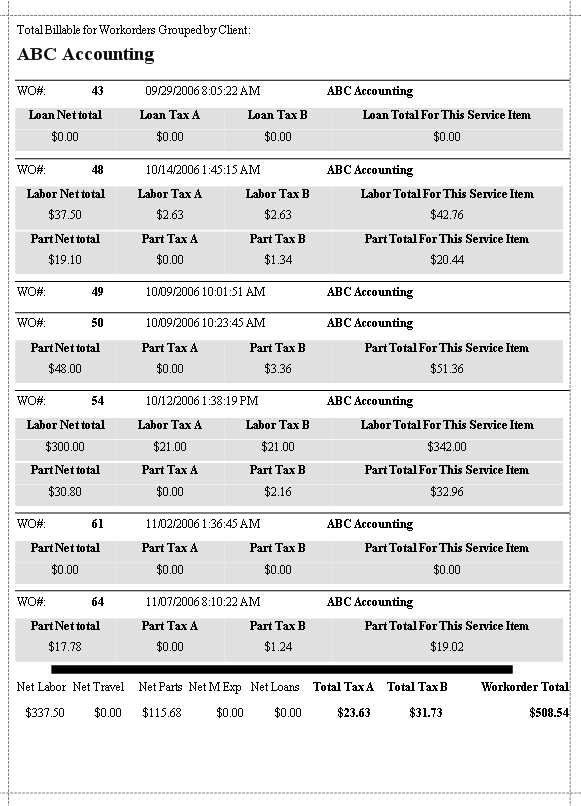
Here is another version of that above - but the Total has been changed to display for all clients displaying in the report. This report template may be useful if you wish to identify the total billable for clients of a head office for example where you would have filtered to show a number of clients, but you want a grand total at the very end. The change was that the totals that were in the GroupFooter for the report first posted above have now been moved to the ReportFooter instead.
Here's another - further customization of the first sample report template where the totals are gouped by client - but with this one I have made the Detail bands True so that they are visible and set group headers to identify each actual part, labor, loan etc within the report.
Sample Billable IdentifiedGrouped By Client with Total
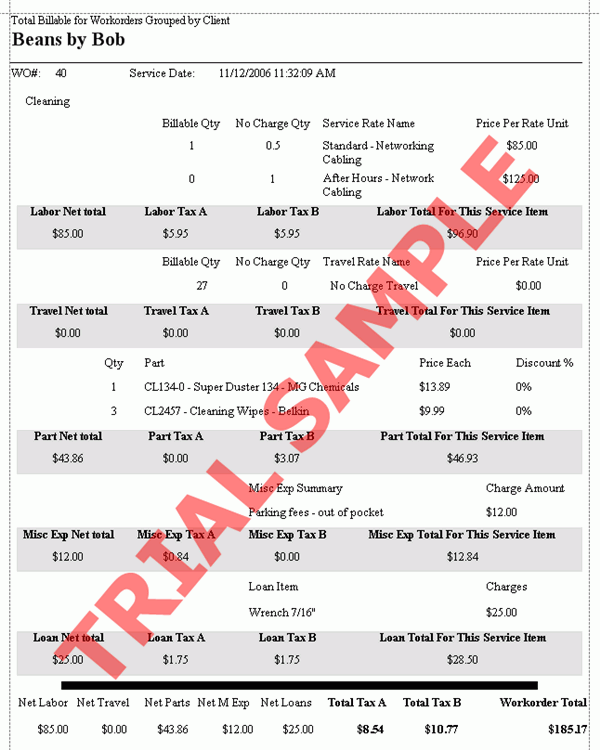
Here's another rendition on the report template - this one shows the subamounts (labor, parts, misc expen, etc) per workorder and than provides a total for each workorder showing on the grid
Sample Summary Billable Per Service Workorder
Here is another rendition of this report template with the following differences:
-grouped by Project instead of by Client
-includes displaying Net Service Hours Quantity, and Net No Charge Hours Quantity via the groupfooter for the WorkorderItemLabor band (these include OnSummaryCalculated scripts to get a running total for the bottom of the report)
-includes displaying Total Service Hours Quantity and Total No Charge Hours Quantity in the groupfooter for all the workorders for that project (these are obtained via the OnBeforePrint scripts for these fields to display the running totals obtained from above)
-Detail band for labor shows
-Detail band for parts shows
Sample Total Billing Grouped By Project Includes No Charge Hours
I invite you to download these samples, and further customize as needed - for example, if you want to group by client, than you would edit the GroupFieldsCollection property for GroupHeader1 (presently is grouped by Project); or if you want details for Misc Expenses to show, you would set the Visible property for Detail6 (of the DetailReportItemMiscExpense band) from False to True, etc.
NOTE: If receive an error message when attempting to print preview a newly imported report template, check that it may just be that you need to get a copy of the latest sample report template that works with your version.
Sample User Billing & NC with Commission report template
First posted 2006 · Back to list
Another sample report template expanding further on possible abilities of reprots from the Labor grid in the Service navigation pane.
This report template is based on that provided in the forum topic Sample-Schedulable-User-Labor-Billing-Report-with-Grand-Total (search for Sample Schedulable User Labor Billing Report)
Sample User Billing Hours Report with Grand Total & Commission

Download and extract, and import into AyaNova. Report will display for selection from the Labor grid in the Service navigation pane.
This report:
is grouped by the schedulable user in Labor
displays the quantity of No Charge hours, Billable hours, NC and Billable combined, and the Net Total for each schedulable user
displays grand totals at the bottom of the report template of all data combined
Have also added so that it displays a 7% commission a schedulabel user may receive on the Net Labor charges the user bills out
And totals this 7% commission per schedulable user
And provides a grand total of all commissions for all schedulable users at the very bottom
I suggest downloading and importing the report template, open it in custom report designer, and follow along by selecting the properties where indicated so that you can see how done.
I took the existing sample report template, opened it in report designer, selected Save As, renamed it to Sample User Billing Hours Report with Grand Total and Commission, and than began customizing the report template.
I added additional variables where the running totals would be kept. I opened the existing script in the ReportHeader band OnBeforePrint script property and added the variables for GrandCommisTotal and CommisTotal
Select the Reportheader band
Select the Properties tab
Expand the Scripts property
Open the OnBeforePrint script
Edited by adding the variables for GrandCommisTotal and CommisTotal
Clicked OK
NOTE: this forum topic was originally developed with version 3 of AyaNova, so how to access Scripts is slightly different for newer versions of AyaNova.
For AyaNova 7, make sure that you review https://www.ayanova.com/AyaNova7webHelp/using_scripts_in_a_report_temp.htm first for how to view scripts in an AyaNova 7 report template, how to edit, etc


I added a new label field within the groupHeaderBand2 for the label 7% Commission (if you select it you will see in the Properties tab, this field is named xrLabel20)
I added a new label field within the detailBand1 (if you select it you will see in the Properties tab, this field is named xrLabel21)
I selected detailBand1, selected the Properties tab, and opened the existing OnBeforePrint and added to the script so that it maintains a running total (CommisTotal) of each Labor Net value multipled by .07 (the 7% commission)
//This gets the value of indivdual 7% commission, converts it to decimal value and adds it to the running total of CommisTotal
CommisTotal +=  (System.Decimal)(.07 * Convert.ToDouble(GetCurrentColumnValue("LT_UI_Label_NetValue")));
If your commission to your staff is different, you would edit the .07 to whatever your commission percentage is.
I selected the field xrLabel21, opened Properties tab, opened Scripts and created an OnBeforePrint script to display each labor records 7% commission
private void OnBeforePrint(object sender, System.Drawing.Printing.PrintEventArgs e)
{

//This gets the value of Net, converts it to a Double value, multiples it by the percentage commision
// converts it to a string format of currency so that it can be displayed as currency in the field
 xrLabel21.Text = string.Format ("{0:c2}",(.07 * Convert.ToDouble(GetCurrentColumnValue("LT_UI_Label_NetValue"))));
   //**************************
}
Again, if you your commission to your staff is different, you would edit the .07 here as well to whatever your commission percentage actually is.
I added a new column to the table in GroupFooter1 so that I could have a place to display the 7% total commission for this schedulable user as well as the label above it.
I selected the new table cell xrTableCell13 (use your mouse to select the field directly under that labeled Total 7% Commission), expanded scripts, and created an OnBeforePrint script
private void OnBeforePrint(object sender, System.Drawing.Printing.PrintEventArgs e)
{
//this converts the total to date for NCBillTotal to a string value, and places it into the xrTableCell8 field
xrTableCell13.Text = string.Format ("{0:c2}",CommisTotal);
}
And than I created an OnAfterPrint script
private void OnAfterPrint(object sender, System.EventArgs e)
{
//this first checks to see if the xrTableCell13 is empty, if it isn't empty it takes the value of
//CommisTotal to date and adds it to the running total GrandCommisTotal for the end of the report
if(xrTableCell13.Text != null)
  GrandCommisTotal += Convert.ToDecimal(CommisTotal);
}
I than selected the GroupFooter1 band, selected Properties tab, expanded Scripts and added to the existing OnAfterPrint
private void OnAfterPrint(object sender, System.EventArgs e)
{
//This resets the running total to 0 for the next group of hours for the next schedulable user
NCBillTotal = 0;
//This resets the running total to 0 for the next group of commission total for the next schedulable user
CommisTotal = 0;
}
I added a new column to the table in ReportFooter so that I could have a place to display the 7% grand total commission for all schedulable users displaying in this report as well as the label above it.
I renamed the field under the label to xrGrandCommisTotal just for ease of finding it, and added the OnBeforePrint script
private void OnBeforePrint(object sender, System.Drawing.Printing.PrintEventArgs e)
{
xrGrandCommisTotal.Text = string.Format("{0:c2}", GrandCommisTotal);

}
I ran the Preview, confirmed report template was multipling and adding correctly, and than saved the report template.
If using AyaNova 7, download instead AyaNova 7 Sample User Billing Hours Report with Grand Total & Commission
Tutorial for Creating Detailed Report Template with AyaNova 7
First posted 2011 · Back to list
Download the Tutorial for Creating Detailed Report Template with AyaNova 7
- Download the TutorialAyaNova7DetailedWOReport.zip
- Extract using WinZip
- This extracts the MS Word document that provides step by step instructions along with screenshots on creating a detailed report template for the Service Workorder grid.
If you do not have MS Word to view, you can download and install the Word Viewer at no charge from Microsoft at http://support.microsoft.com/kb/891090
If you have report template questions, we encourage you to review those already posted, and if not posted, to post in the AyaNova Printing & Report Templates section
Tutorial on creating a new AyaNova 4 detailed report template from scratch
First posted 2008 · Back to list
Download the TUTORIALAyaNova4DetailedWOReport.zipand extract using WinZip
Provided is a MSWord document going through basic setup of a report template for a workorder using the AyaNova 4 report designer
If you have report template questions, we encourage you to post them in this AyaNova Report Templates forum section for the benefit of all AyaNova users.
Tutorial on creating PO Receipt Items label for quantity of parts received
First posted 2009 · Back to list
One of the many new features in AyaNova 5 is the (URL removed as for older version no longer supported - see the latest version of AyaNova) Purchase Order Receipt Items grid where you can filter and sort to display the parts actually received into AyaNova, and where you may want to be able to print labels for received parts.
Download the following zipped file TutorialLabelReportMultipleItems.zip
This zip file includes a MS Word document providing a tutorial on creating a label report for the PO Receipt Items grid so that you can print off labels for the actual quantity of a part received, not just per record
For example, if you use the sample report template Received Items Labels AVERY 12295 that is installed with AyaNova 5, what will happen is that only one label will be printed per record displaying in the grid, even if you actually received more than 1 part (i.e you received 3 of a certain part). Whereas if you create a report as identified in the MS Word tutorial, a label will be printed for the quantity received.
Use the Count Summary function in a report template
First posted 2007 · Back to list
An AyaNova user wanted to obtain a report from the Units grid that shows a count of how many units a client owns via a report display similar to dir=ltr >
Client 1
Serial Number Notes
Total Number or units for Client 1
Client 2
Serial Number Notes
Total Number or units for Client 2
Etc
Example of what the report template may look like:

Download the report template total number of units per client, import and open in the Report Designer
In the report designer, select the field xrLabel11 (the SerialNumber datafield in the groupfooter1), and view the Summary properties for it

What this does is "counts" the number of serial numbers for this client, and displays the amount in this field.